Send quote to management software

This feature represents the heart of the integration between Quoting24 and the outside world.
The goal is simple: allow Quoting24 to “talk” with any management software (ERP) present in the company.
Whether you use well-known management software or one developed specifically for you, Quoting24 is designed to be universally compatible.
The process is divided into two steps:
- Sending the semi-finished quote from Quoting24 to the management software
- Sending the finalized quote from the management software to the customer
1. Sending the semi-finished quote from Quoting24 to the management software
This section explains how to connect Quoting24 to any external management software for automatic quote creation.
The logical data flow always starts from the Ticket (Chat) and follows this structure:
Ticket → Vehicle → Search ("Spare part") → "Right" code (OE code) → Selected products
When an operator decides to create a quote, Quoting24 sends a “call” (request) to your management software, to a customized address specific to your company.

What happens in this phase:
- Customer matching: The system tries to recognize the customer by sending the correct company code to the management software (or any other fields such as VAT number or phone number).
- Request adaptation: The data collected in chat (license plate, spare part codes, descriptions) is “translated” into the format that your management software expects. Customizing the call must be requested from Quoting24 customer support.
- Reference saving: Quoting24 stores the ID or address of the quote that has just been created in the management software, so it can be retrieved in the future.
In short: Quoting24 fills in the quote draft directly in your system for you.
2. Sending the finalized quote from the management software to the customer
Once the quote is ready or confirmed in your management software, you can send a return notification to Quoting24 (to our dedicated API address), passing the quote in PDF format and the reference to the quote ID or source ticket.

After Quoting24 receives the quote from the management software, we are in this phase, where the quote is completed and we can perform actions:
- with the Arrow we can open the quote in the management software
- with the Eye we can view the quote
- with the Download arrow we can download the quote in PDF format
- with the Send arrow we can send the quote to the customer
It is possible to make the quote be sent directly to the customer through WhatsApp, using a call parameter, without any confirmation step inside Quoting24 (without having to click the send icon).
When using the official WhatsApp APIs, it is also possible to send an acceptance button together with the PDF attachment and, if this button is pressed, the quote is automatically sent to the management software as accepted.
Quote file name
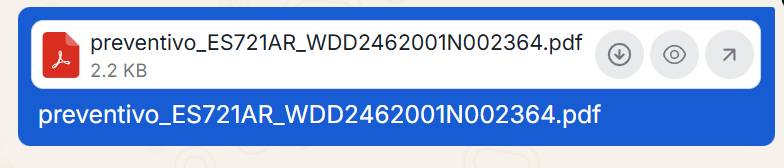
The name of the quote PDF file is generated by including, when available, useful information for recognizing the document, such as:
- license plate
- VIN
- quote number
This makes it easier to identify the file after download or when it is sent to the customer.
INTEGRATION EXAMPLE: Qricambi Quotes
For those who use Qricambi, integration with the management software can be easily reproduced using Qricambi Quotes as an example management platform.
Quote request

The system automatically creates the quote on Qricambi following intelligent logic:
- Customer recognition: If the Quoting24 contact matches a Qricambi customer (customer code matching), the quote is addressed to that customer. Otherwise, the generic information of the Quoting24 operator is used.
- Transmitted data: License plate/VIN, Vehicle, Link to the source ticket and the User performing the operation are sent automatically.
How are the quote rows filled in?
The system can handle different cases so no information is lost:
- Selected rows: If you selected spare parts from the Qricambi search, they are inserted with all details (code, price, etc.).

- From Search (OE Code): If you did not select specific rows or did not find results on Qricambi, but you have an original code (OE) from the VIN, the system creates a row with that code and the note "FROM SEARCH".

- Generic description: If there is no VIN or technical search, but only a text request (e.g. "right mirror"), an empty row is created containing only the description of the requested part.

Receiving the quote
Once the quote has been processed and completed inside Qricambi:
- Simply click the "Send to Quoting24" button.
- The system immediately sends the PDF to the chat.
- The quote is marked as completed.
The operator can then view the PDF, download it or send it directly to the customer on WhatsApp without ever leaving the workflow.