Search with Extension
Using the extension to search on Eper and Partslink
By installing the Qricambi extension (Qricambi Assistant), you can search for VINs not found on the Partslink platform or on the Eper platform.
Click here to install Qricambi Assistant (Chrome)
Click here to install Qricambi Assistant (Firefox)
Usage guide
Search on P
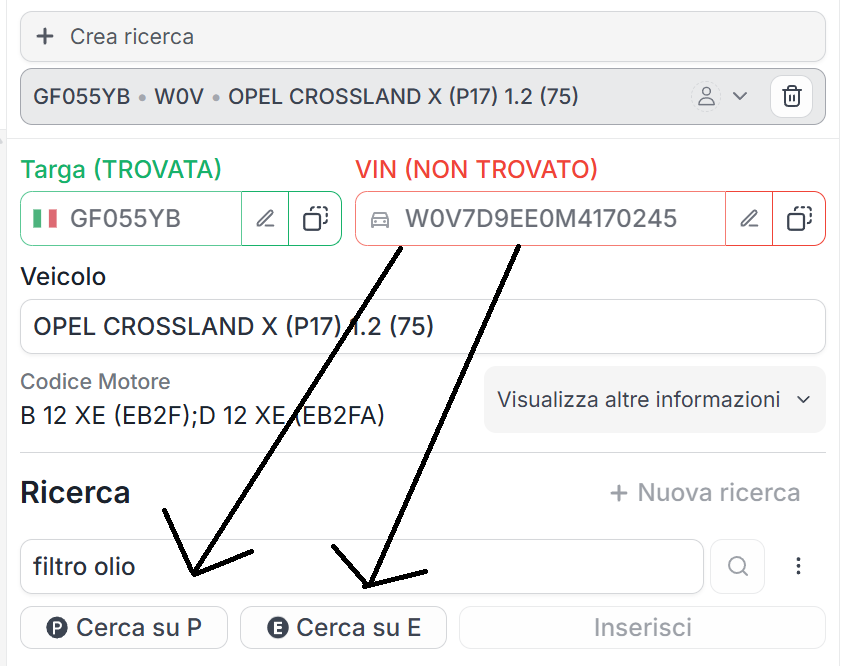
To search for a vehicle spare part when you have the VIN on Quoting24, by pressing the "Search on P" button, the VIN will be sent to Partslink24, which will automatically select the vehicle brand, search for the VIN and finally search for the component.
When a Partslink tab is already open, the search does not open a new tab: Quoting24 uses the existing tab and sends the new search there.
The path used for codes searched on Partslink is saved, making it easier to resume or reconstruct the search context.
After identifying the product code by opening the exploded views, you will see three new icons below it, each with a specific function.

Starting from the left:
- White icon with the "Q": transfers the selected code to the Qricambi "prices and availability" search;
- Red icon: sends the code to Quoting24;
- White icon with "24": sends the code to Quoting24, but closes the Partslink tab (not recommended if you want to perform other searches).
Search on E
To search for a vehicle spare part when you have the VIN on Quoting24, by pressing the "Search on E" button, the VIN will be sent to Eper, which will search for the VIN itself and finally the vehicle component.

On Eper too, as on Partslink, you can use the features of the three icons described above (after selecting the correct code).