Notifications
Quoting24 allows each user to configure their own personal notifications, so they can stay up to date on requests to manage even when working on multiple phone numbers.
Notifications help the operator follow:
- new requests
- received messages
- assigned or unassigned tickets
- internal notes and colleague tags
- message reactions
Where notifications are configured
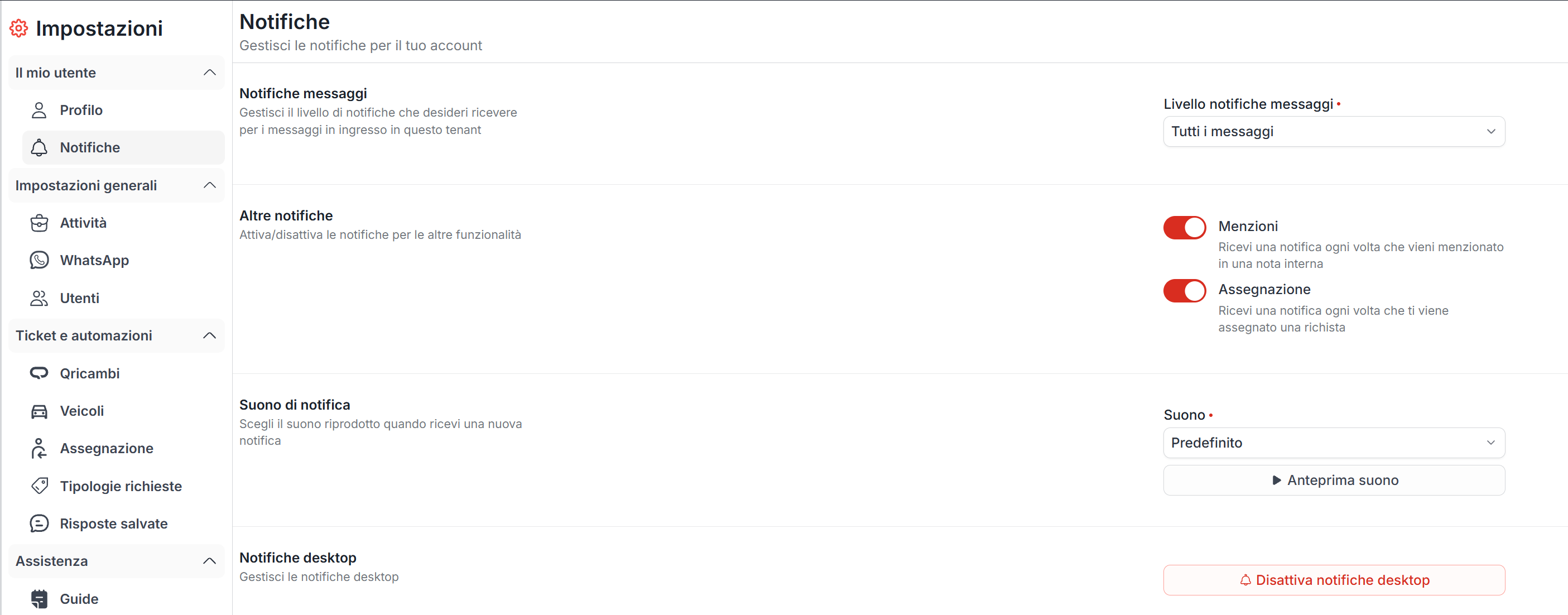
Notifications are configured from Settings → Notifications.
From this section you can:
- choose the notification sound (with preview)
- set the message notification level for the current activity
- enable desktop notifications
Unified notifications
Quoting24 notifications are unified: if a user works on multiple connected phone numbers, they receive notifications from all numbers for which they are enabled, regardless of the number open at that moment.
This avoids having to keep a browser tab open for each activity just to check notifications.
Notifications are shown in the bell of Quoting24 and follow the user's personal settings.
Desktop notifications
To receive alerts even outside the Quoting24 window, you can enable desktop notifications.
To enable them:
- go to Settings → Notifications
- click Enable desktop notifications
- confirm the authorization requested by the browser
Once enabled, the browser can show a notification even when Quoting24 is not the active tab.
Notification sound
In the settings you can choose the notification sound, with a listen preview.
Available options include sounds such as Default, Chime, Pop, Pulse, Ring, Bloom and Runaway, plus None.
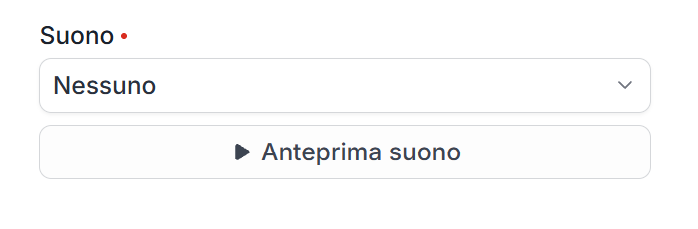
With None, visual notifications stay active according to the configured rules, but the sound alert is fully silenced.
Mentions, assignments and sound remain user settings.
Notification levels per activity
The message notification level is no longer global on the user: it can be set per activity.
If you work on multiple tenants, each activity has its own preference; the one you are editing is the current workspace one.
The available levels allow notifications to be received:
- none
- only mine
- mine and new
- all
The choice depends on the operator's role and the company's workflow.

Notifications for new requests and messages
When a new request arrives from a customer, Quoting24 can alert operators based on the configuration chosen for the activity.
This is especially useful when:
- multiple operators work on the same number
- requests must be taken over quickly
- the company wants to prevent a new ticket from remaining unmanaged
Notifications can also be generated by messages received on already open tickets, based on the level selected for the activity.
Notifications for assigned or unassigned tickets
When an open ticket is assigned to an operator, the notification makes it possible to quickly know that a request needs to be worked on.
The notification is also generated when an open ticket is unassigned, so the operator knows that the request is no longer under their responsibility.
Assignment can happen:
- manually
- through automatic rules
- based on the assignment configuration
For more details, see the Assignments page.
Notifications for internal notes and tags
Inside conversations, you can create internal notes visible only to colleagues.
When a colleague is tagged with @nickname, they receive a specific notification. You can also use @everyone to draw the attention of all enabled operators.
Notifications generated by a tag in an internal note are highlighted in orange, so they can be distinguished from normal message notifications.
Next to the read checkmarks, the internal note icon is shown to indicate that the content was not sent to the customer.
Notifications for reactions
Message reactions generate notifications on Quoting24.
Reaction notifications are shown:
- in the bell
- in desktop notifications, if enabled
- in the message preview in the left column
When opening the message, you can also see who added the reaction.
Operational tips
For correct use of notifications:
- choose a level consistent with your role for each activity
- enable broader notifications if you need to monitor new requests
- use more restricted notifications if you work only on assigned tickets
- use None as the sound if you prefer visual alerts only
- enable desktop notifications if you do not always keep Quoting24 in the foreground
- use tags in internal notes to call specific colleagues
- periodically check the configuration if you change role, activity or phone number