Automatic assignment
The Automatic Assignment system aims to make ticket management more quick, efficient and accurate, especially in contexts where multiple operators work on a single WhatsApp number.
This feature automatically assigns new tickets to the most suitable operator or team, based on predefined rules.
The goal is to:
- eliminate manual assignment
- reduce waiting times for customers
- ensure that every request immediately reaches the right person
When automatic assignment is triggered
The system starts working when the first message of a new ticket arrives.
It analyzes the ticket information and compares it with:
- skills
- responsibilities
- operator configurations
Assignment is based on three matching criteria:
-
Label
(see the Labels section) -
Company assigned to the contact
If there are operators dedicated to a specific customer company -
Contact
If there is a trusted contact person for a specific contact
For each new ticket, the system:
- calculates how many matches each operator has
- proceeds with assignment according to the selected rule
⚠️ Auto-assignment applies only to the customer's first messages
and stops working when there is operator activity on the ticket.
Auto-assignment on opening
If a ticket is still unread and not assigned to any operator, opening the ticket can automatically assign it to the operator who is taking it over.
This behavior prevents two operators from starting to work on the same request at the same time and makes it clearer who is responsible for the ticket.

Operator availability
The system is designed to work only with operators who are actually available.
Automatic assignment happens only if at least one eligible operator is online.
-
If no qualified operator is online
The ticket is not automatically assigned
and remains available for manual takeover. -
If at least one qualified operator is online
The system proceeds with automatic assignment.
Assignment rules
You can configure the system to use one of the following assignment logics:

Best match
With this rule, the ticket is assigned only to the operator (or operators) with the highest matching score.
It is ideal for routing requests to a specific expert.
Practical example
A ticket arrives from the company “ACME Corp” and is of type “Commercial”:
- Anna → responsible for the Commercial type (1 match)
- Marco → responsible for the ACME Corp company (1 match)
- Lucia → responsible for both the Commercial type and ACME Corp (2 matches)
➡️ With the Best Match rule,
the ticket is assigned only to Lucia.
All matches
With this rule, the ticket is assigned to all operators who have at least one match.
It is suitable for teams where multiple people can handle the same type of request.
Practical example
Using the same scenario as above:
➡️ With the All Matches rule,
the ticket is assigned to Anna, Marco and Lucia.
Managing the lifecycle of an auto-assigned ticket
Manual assignment and assignment to everyone
In addition to automatic assignment, a ticket can be manually assigned to one or more operators.
In the assignees select, the None option is available. Selecting it removes all assignees from the ticket.
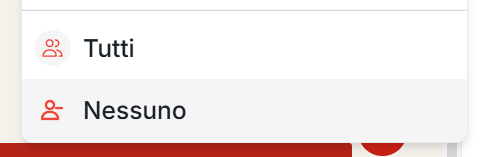
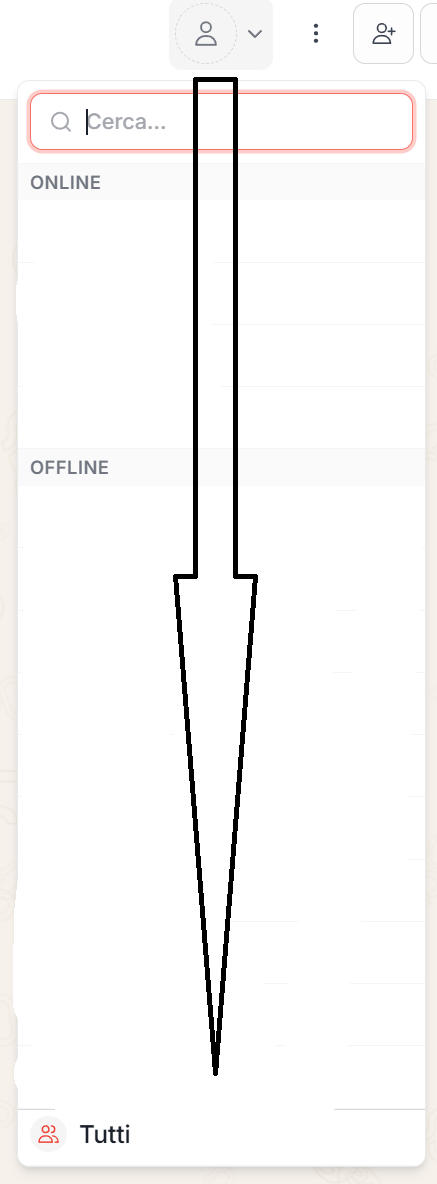
When the whole team needs to be involved, the ticket can be assigned to all enabled collaborators. This function is useful for urgent requests or for tickets that can be handled by the first available operator.
Ticket marked as “Unread”
A ticket can be marked as Unread to put it back into the team's takeover flow.
When a ticket is marked as Unread:
- existing assignees are removed
- the request becomes visible again to operators who can take over unassigned tickets
- the ticket can be reassigned manually or through the normal operational flow
Ticket without response (safety time)
To prevent an auto-assigned ticket from being ignored, a configurable safety time is provided.
If a ticket:
- has been auto-assigned
- does not receive a response within the set time
the automatic assignment is removed.
The ticket becomes:
- unassigned
- visible to the whole team
This mechanism prevents requests from being lost.
The first reply “claims” the ticket
When a ticket is automatically assigned to multiple operators:
- the first operator who replies claims the ticket
- all other operators are removed from the assignment
- the operator who replied becomes the only person responsible
This ensures:
- no overlap
- always clear responsibility
Configuring automatic assignment
The administrator can configure the system by following these steps:
-
Enable the function
Enable the “Enable Automatic Assignment” option in settings. -
Choose the assignment rule
- Best match
-
All matches
-
Set the safety time
Define after how many minutes an unmanaged ticket must become unassigned again
(default 15 minutes). -
Define operator responsibilities
Associate operators with their areas of expertise: -
Ticket types
- Companies
- Contacts

Advanced practical example
- Matteo is an expert in Jeep and bodywork
- Alessandro is an expert in bodywork
A request arrives for a door of a Jeep Renegade.
-
With Best Match
➜ the ticket is assigned only to Matteo -
With All Matches
➜ the ticket is assigned to Matteo and Alessandro