Saved responses
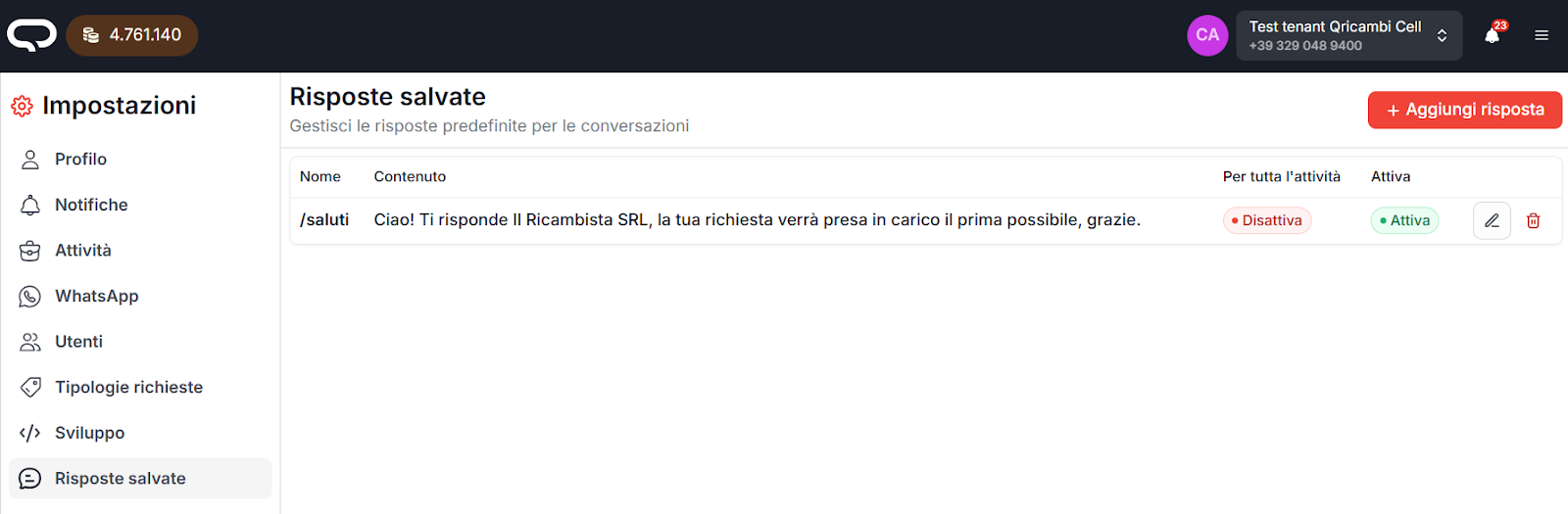
From the “Saved responses” section you can create predefined responses to send quickly to customers.
Creating a new saved response
To create a new Saved response, click the red button at the top
“+ Add Response”.

You must enter:
- a name
- the content of the response
It is possible to add an attached file.
Types of saved responses
Saved responses can be managed in two modes:
- Only for me
Designed for personal responses (e.g. “I am Antonio…”).
This response will be usable only by the user who creates it.
Users who are not administrators can view and set only saved responses of the “only for me” type.
- For the whole activity
All users of the account will see the saved response.
Only administrator users can create and edit this type of response.
Managing saved responses
Saved responses can be:
- enabled or disabled using the dedicated checkbox
- edited by clicking the pencil icon to the right of each response
Using saved responses in chat
A saved response is inserted directly from the message writing bar.
To use it:
- type the
/character - write the saved response name (even partially)

You can insert the response:
- without completing the name
- by pressing Enter on the highlighted response
(you do not need to use the mouse)
Suggestion ordering
If the entered text is partial or ambiguous
(e.g. /o), saved response suggestions are sorted as follows:

- Alphabetical order of names that start with the typed text
(e.g./o→ now, opening hours) - Then, results where the typed text
is contained in the name or content are shown, also in alphabetical order