Users
This section is visible only to administrators, not to members (users).
From the Settings → Users section you can view and manage the list of users associated with your Quoting24 profile.
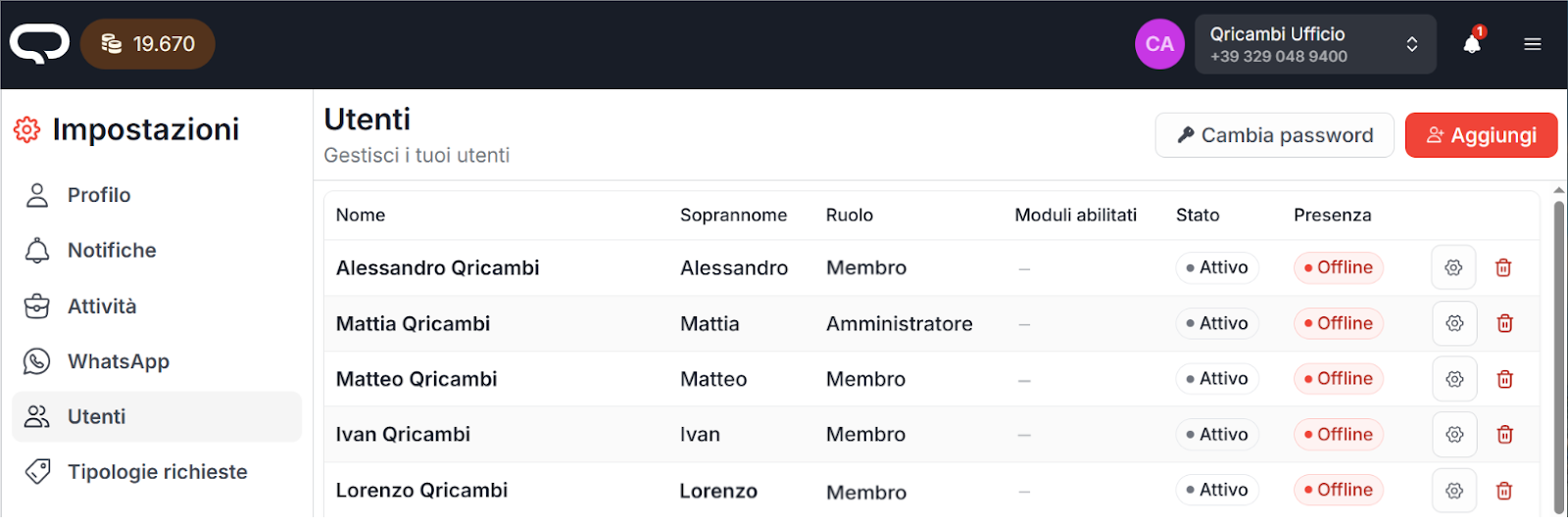
User status
Each user can be in one of the following statuses:
-
Active
The user has already logged in to Quoting24 at least once. -
Pending
The user has been invited to Quoting24, but has not yet completed the first access. -
Inactive
The user has not entered Quoting24 for 5 minutes. -
Offline
The user has not entered Quoting24 for more than 15 minutes.
It is also possible to view the status:
- Online
- Offline
The user's status is used by the platform to determine whether “auto-assignment” is possible. If the users who are potential targets of “auto-assignment” are all offline, auto-assignment will not happen (and the ticket will remain unassigned and therefore visible to everyone entitled to view it).
User roles
Users can have one of the following roles:
-
Administrator
Has access to all features and sections of the application. -
Member
Has limited access.
Some sections, such as Users, WhatsApp and Activities, are not visible.
Advanced user management (administrators)
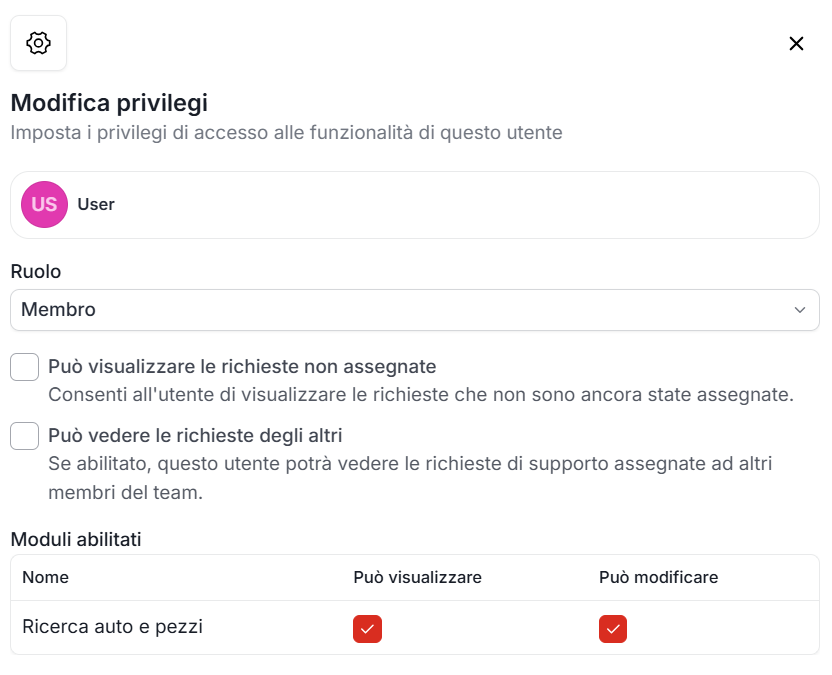
A user with the administrator role can click the gear icon to the right of each user to change some settings.
In particular, it is possible to:
-
Change the user's role
(administrator / member) -
Manage request visibility
By default, a member can see only requests assigned to them,
but it is possible to enable: - viewing unassigned requests
-
viewing requests assigned to other users
-
Configure the enabled modules
It is possible to granularly select which modules each member can: - view
- edit
For example, for the “car and parts search” module:
- a member can only view codes selected by other operators
- or they can enter the exploded views and perform searches and changes
like an administrator
Adding new users
An administrator can invite or add new users to Quoting24 by clicking the red “Add” button.
The list of available users will open; to invite a user, simply click the red arrow next to the desired name.
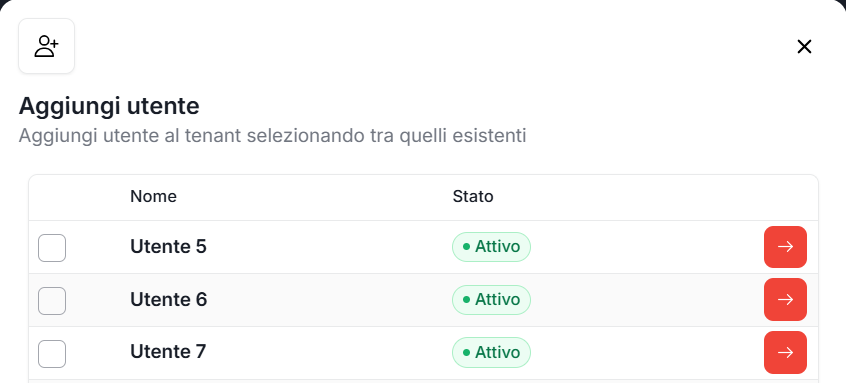
During creation or invitation of a new user, you can pre-set their nickname.
The nickname is the internal name used on Quoting24 to:
- display the user in assignments
- tag them in internal notes
- recognize them more quickly when collaborating with operators
Password change and account management
By clicking “Change password” at the top right, you are redirected to the Account → User management section of Qricambi (Account Admin):
If your user is a Qricambi administrator, from this section you can: - change username - change password - quickly edit the selected user's nickname and signature via the pencil icon The access credentials are the same for Qricambi and Quoting24.