Broadcast API
The Broadcast section lets you create and manage broadcast messaging campaigns on numbers connected to Quoting24 through the official Meta APIs (WhatsApp Business Platform).
In practice, you can send the same template message to many WhatsApp numbers, upload recipients from an Excel file, choose the send date and time, and monitor the status of every message.
Note: Quoting24 Broadcast Campaigns are not the “broadcast lists” from the WhatsApp app.
They only work with a WhatsApp Business / Meta API connection in connected status and use WhatsApp templates already available in Quoting24 (synced / approved by Meta).
Requirements
-
Active WhatsApp Business connection
The Broadcast menu item appears only if the Meta API connection status is connected.
See WhatsApp and, if you also use the same number on the phone, WhatsApp Coexistence. -
Permissions
All room members can view campaigns.
Only owner and admin can create, edit or delete campaigns and queued messages. -
WhatsApp templates
At least one template must be available in Quoting24 (the ones selectable in the wizard).
If the template has an image, video or document header, you must upload the media file when creating the campaign: Meta does not automatically reuse the template preview. -
Recipients file
Recipients are loaded from an XLSX file (not from the Contacts directory). Maximum 1000 recipients per campaign. -
Meta billing
Template messages follow Meta’s price list (Marketing / Utility / Authentication categories, etc.).
How to open the Broadcast section
- Open the Quoting24 menu (icon at the top right).
- Select Broadcast.
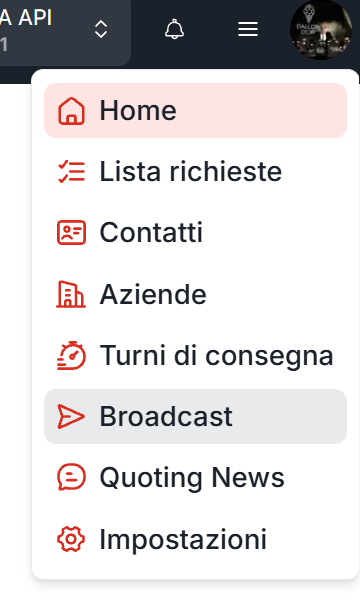
The Broadcast Campaigns page opens, with subtitle Manage WhatsApp broadcast messaging campaigns.
Campaign list
| Column | Description |
|---|---|
| Name | Campaign name (clickable for details) |
| Schedule | Scheduled send date and time |
| Progress | sent / total (percentage) — the percentage counts sent + failed messages over the total |
| Status | Campaign status (see below) |
Top right: + New campaign.
On each row you can delete the campaign or open its details.

Campaign statuses
| Status | Meaning |
|---|---|
| Draft | Draft (not used by the standard creation flow) |
| Active | Campaign created and queued / waiting for the scheduled time |
| Sending | Sending in progress |
| Completed | All messages have been processed (sent or failed) |
| Failed | Campaign failed |
| Cancelled | Stopped by the user: messages not yet sent will no longer be delivered |
| Archived | Automatic archival after about 30 days |
Create a new campaign
The wizard has three steps:
- Configuration
- Recipients (XLS)
- Preview and confirm
Step 1 — Configuration
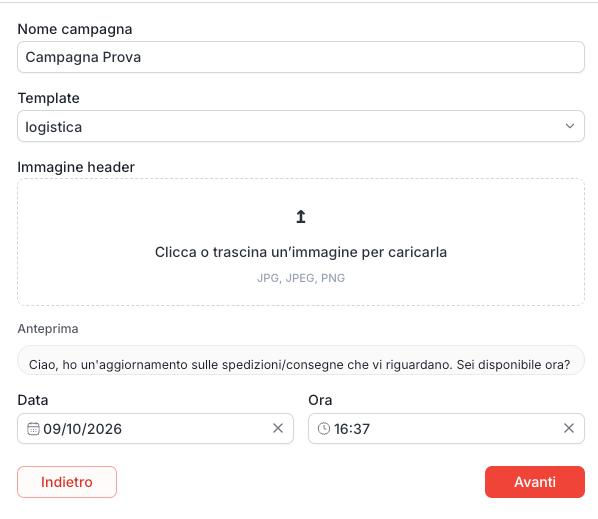
From the list, click + New campaign and fill in:
| Field | What to enter |
|---|---|
| Campaign name | Name to recognize it in the list |
| Template | WhatsApp template to send |
| Header image / video / document | Appears only if the selected template requires it; in that case the file is mandatory |
| Date | Send start day |
| Time | Send start time |
On the same screen you see the template preview (text, footer, buttons and media if uploaded).
Then click Next.

Header media (only if the template allows it)
The upload field for header media is not always shown.
It appears only after you select a template whose Meta header type is:
- image → formats
JPG,JPEG,PNG - video → format
MP4 - document → format
PDF
If the template has no header media, the field is hidden and you can continue without attachments.
If the template requires it, you cannot proceed without uploading a file: Meta does not automatically reuse the template preview.
In the example below, selecting a template with an image header shows the Header image area (click or drag-and-drop).
Step 2 — Recipients (XLS)
- Click Download XLSX template to get the sample file.
- Fill the sheet with these columns:
| Column | Required | Description |
|---|---|---|
recipient_name |
No | Recipient name (label only in Quoting24) |
recipient_address |
Yes | WhatsApp number (with or without +; spaces and 00 prefix are normalized on send) |
var1, var2, var3, … |
If the template has variables | Template variable values, in order |
- Upload the completed file (Upload completed file,
.xlsxformat). - When at least one valid recipient appears, click Next.
Limit: maximum 1000 recipients per campaign.
Step 3 — Preview and confirm
Check:
- template preview
- recipient list (you can edit or delete individual rows)
Then click Confirm and send.
The campaign is created in Active status and messages enter the queue as Pending, scheduled for the chosen date/time. You are taken to the campaign detail.
Campaign detail and messages
In the detail you see:
- campaign status and schedule
- list of every message with:
- name and number
- next send (if still queued)
- message status
- retries (
retry / max) - any error
- rendered text preview (with variables replaced)
Message statuses
| Status | Meaning |
|---|---|
| Pending | Queued, not sent yet |
| Scheduled | Scheduled |
| Sending | Sending to Meta in progress |
| Sent | Sent successfully |
| Failed | Failed after the allowed retries |
| Cancelled | Cancelled |
| Archived | Archived (old messages) |
If a send fails, the system may retry automatically (up to 10 attempts, with a wait between attempts).
You can also edit or remove from the queue messages that have not been sent yet (owner/admin only).
Cancel a campaign
While the status is Active (or Draft), you can use Cancel campaign.
Messages already sent remain sent; those still in the queue are no longer delivered.
How sending works
- Sending starts at the scheduled date/time (or shortly after, if that time has already passed).
- Messages are sent one at a time, with a short pause between sends.
- Each message is a WhatsApp template sent via Meta API on the room connection.
- When all messages are sent or failed, the campaign becomes Completed.
Important notes
- Meta API only: this section is available when the number is connected through the official WhatsApp Business APIs.
- Menu hidden without Business connected: if you do not see Broadcast, check that WhatsApp Business is linked and in connected status.
- Does not use the Contacts directory: numbers come from the XLSX file (or from edits made in the preview).
- Meta costs: each deliverable template may generate a charge by category and Meta rules. See also WhatsApp Coexistence for costs when coexistence is enabled.
- Consent and compliance: for marketing campaigns, make sure you have recipient consent and follow WhatsApp / Meta policies.
- 1:1 send from ERP: to send a message to a single contact from external software, use Write on WhatsApp through our APIs. That integration does not replace mass Broadcast campaigns.
Operational summary
- Connect the number with Meta API (connected status).
- Make sure you are owner or admin.
- Prepare the WhatsApp templates in Quoting24.
- Open Broadcast → + New campaign.
- Configure name, template, date/time (and header media if required).
- Download the XLSX template, fill it in and upload it.
- Review the preview and confirm.
- Monitor progress, campaign status and message details.