Contacts
The “Contacts” section is available in the menu at the top right.
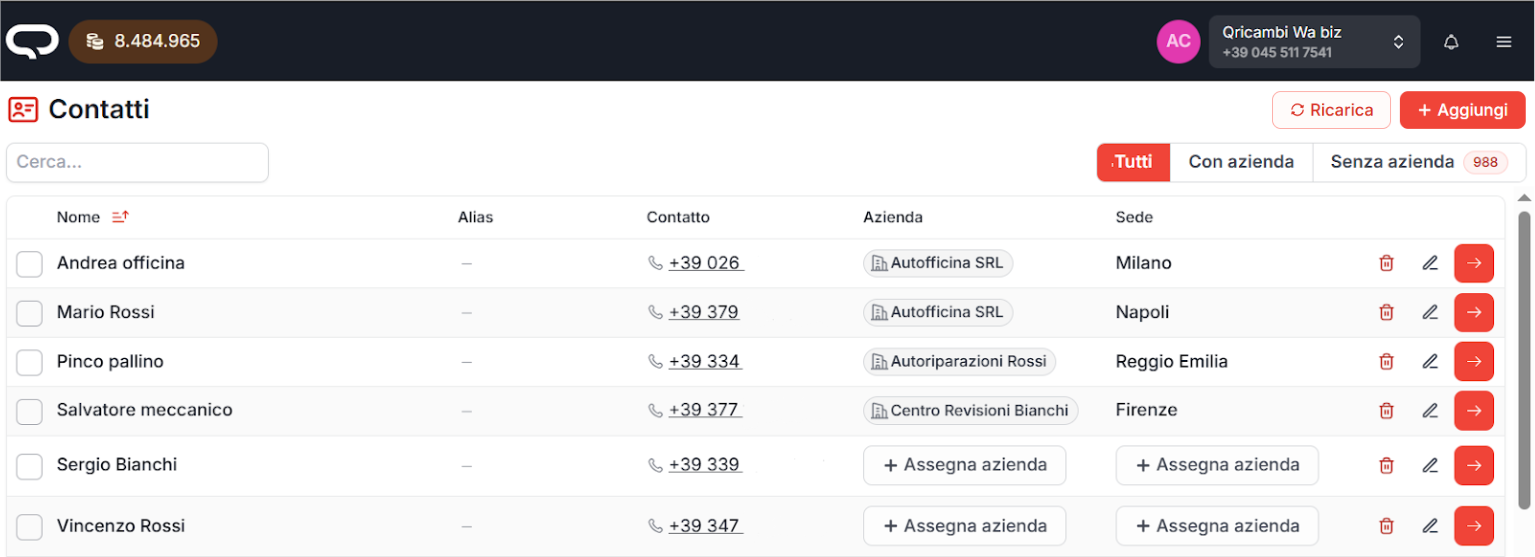
This page shows the list of contacts managed in Quoting24 starting from the connection of the WhatsApp channel.
Page navigation
Contact search
At the top left there is a search field that allows you to quickly find a contact:
- by entering the name
- or the phone number
Main actions
At the top right there are the following buttons:
-
Reload
Allows you to perform a manual update of contact data between the WhatsApp channel and Quoting24. -
Import/Export
Opens the dialog to download an Excel template, export contacts, or import a file.
Details in the section Import/Export contacts via Excel. -
+ Add
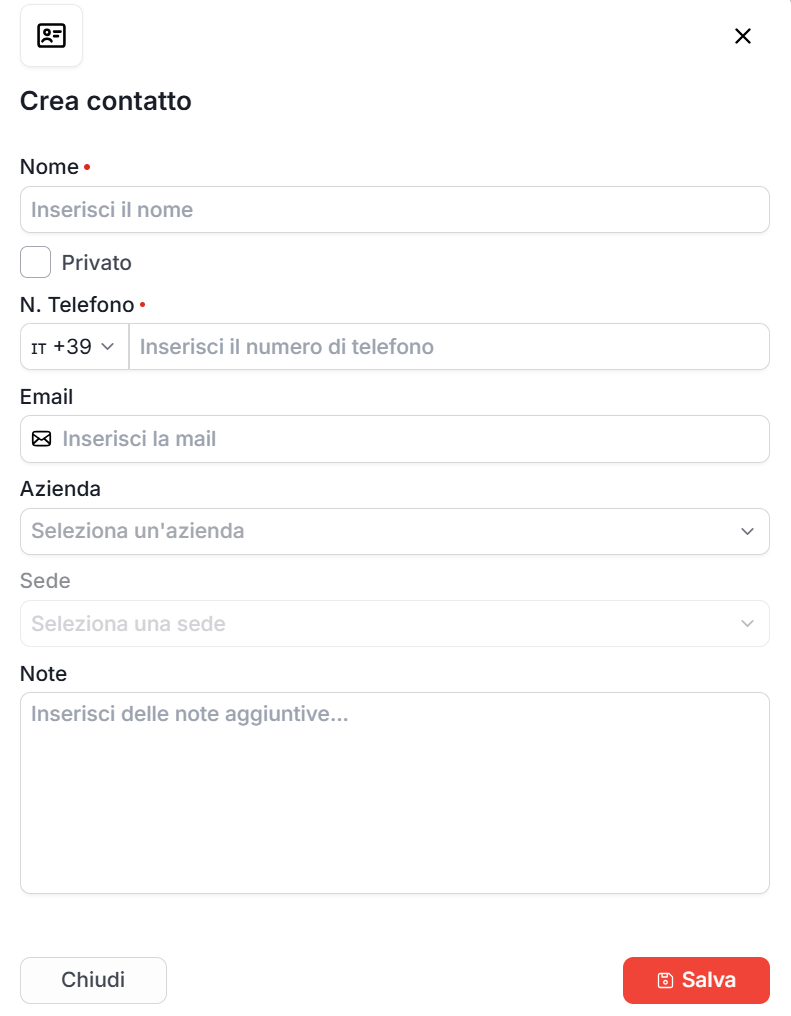
Allows you to create a new contact.
A screen will open where you can enter: - name - phone number - company
After filling in the fields, you can save the contact.
Assigning a company to a contact
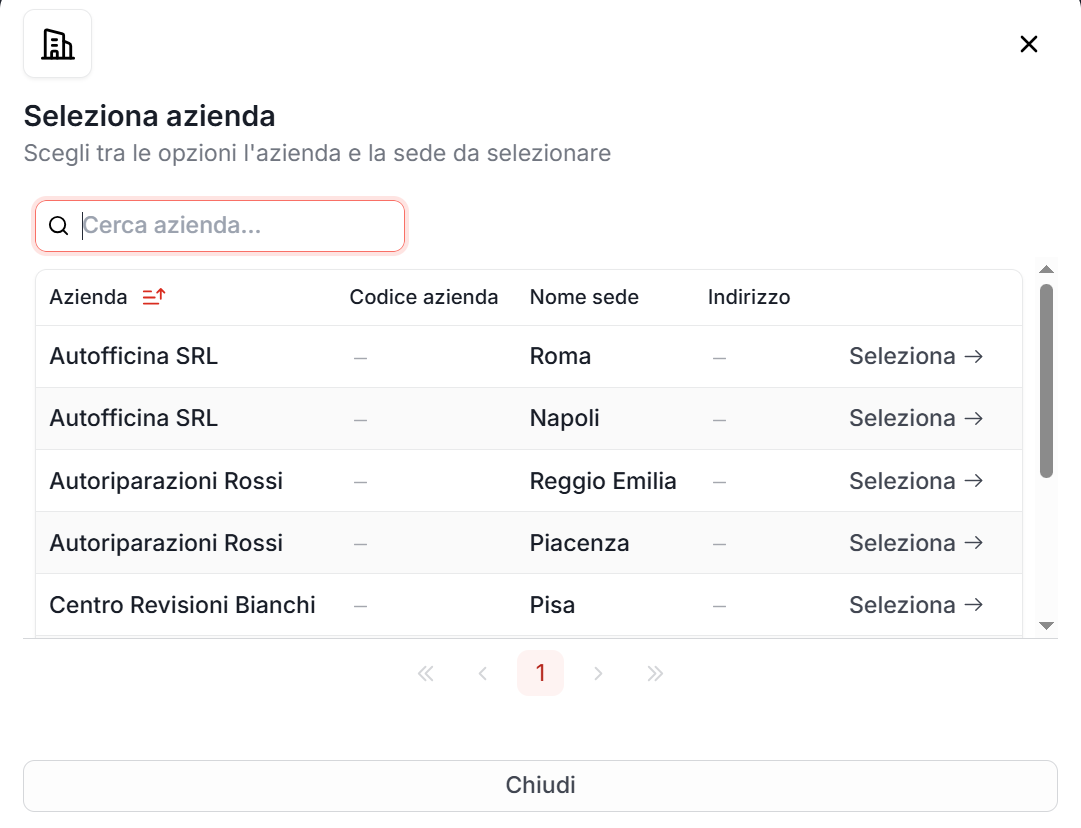
From the contact list, you can quickly assign a company to a contact by clicking
“+ Assign company”.

The list of companies saved on your Quoting24 account* will be shown.
To assign the company to the contact, simply click “Select”.
By account we mean the phone number:
each phone number associated with Quoting24 has its own contacts, companies and delivery shifts.
Assigning a company to a contact (second method)

When a customer has not yet been assigned to any Company or has not been labeled as a Private individual, you need to click the circled element to open the next window.
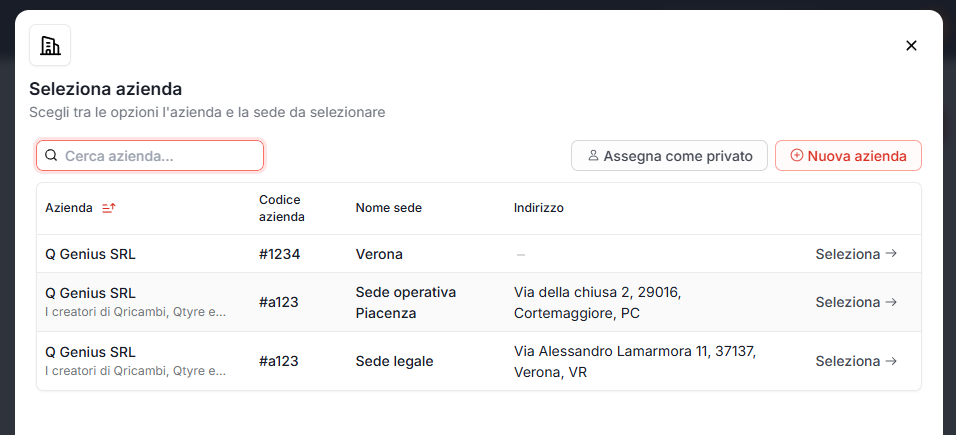
At this point there are 3 cases:
- The contact is a Private individual, therefore not belonging to a specific company; in this case the assignment will be made using the Assign as private individual button
- The contact belongs to a company among those exported; in this case, simply select the company corresponding to the customer
- The contact belongs to a company not among those exported; in this case, simply press the New company button and assign it to the customer

After assigning the user to the company, the ticket list preview shows the company code (without #) in the tag next to the name. If the customer was marked as Private individual, the Private label is shown.
In the ticket list, to the right of the name, the single tag also shows the contact priority and takes its color from the type (company or personal). Details in Main screen.
Open new request
From Contacts you can start a conversation without using the home +.
- in the contacts list, each row has Open new request
- in the contact detail you find the same button at the top
This opens a new request to that contact, using the same ticket management rules as the home screen.
Contact priority
Each contact can have its own priority: High, Medium or Low.
Behavior:
- if the contact has a company and no contact priority is set, Quoting24 uses the company priority (Inherited from company)
- you can set a priority on a contact without a company
- you can override the inherited priority without changing the company priority
Priority can be managed:
- from the create / edit contact form
- from the ticket Information tab
- from contacts Excel import when the column is present
In the ticket list, the priority icon appears in the tag next to the name.
Contact type
Type (e.g. customer, supplier, collaborator) works differently from priority:
- contact without a company → you can assign a personal type
- contact with a company → the type is always the company type, not editable on the contact; change it on the company
In the ticket Information tab, if the type is inherited you see Inherited from company.
The effective type colors the tag in the ticket list and can be used as the Company type filter in the home funnel.
Contact name synchronization
Quoting24 is the main reference for contact names.
This means that, when a contact already has a name saved in Quoting24, that name is considered correct and is no longer overwritten by automatic updates from the WhatsApp channel.
Contact synchronization can happen at different times, for example:
- when a manual synchronization is started
- when a message arrives from a new number
- during other automatic contact update processes
When an update arrives from WhatsApp, Quoting24 applies this logic:
- if the contact does not exist yet in Quoting24, it is created using the phone number and the name available from the WhatsApp channel
- if the contact already exists, only missing data is completed
- the name is updated only if it is still empty in Quoting24
- if the contact already has a name in Quoting24, automatic updates do not change it
In practice, synchronization is used to fill missing data, not to overwrite information already corrected by operators in Quoting24.
This setting prevents names manually corrected by operators from being lost after a new WhatsApp update and keeps the data managed in Quoting24 consistent.
Contact notices
You can configure contact notices, meaning important notes that are shown above the chat when you open a conversation with that contact.
Notices are useful for highlighting information that the operator needs to see immediately, for example:
- specific commercial instructions
- conditions agreed with the customer
- operational precautions to follow
- important notes entered by colleagues
Import/Export contacts via Excel
From the contacts list you can open the Import/Export dialog to:
- download an Excel template with the correct column structure
- export all tenant contacts, or only the selected ones
- import an Excel file and save the changes after preview
Export
Export downloads the tenant contacts (including company and location references) and generates an .xlsx file.
You can export:
- all contacts
- or only the contacts selected in the list
The exported file also includes the id column: it is the Quoting24 contact identifier and should be kept if you want to update the same contacts in a later import.
Import
To import contacts:
- open the Import/Export dialog from the contacts list
- upload the Excel file (you can start from the downloadable template or from a previous export)
- check the table preview
- save to start the import
The backend performs an upsert in batches of 500 rows.
How each contact is matched
For each row in the file this logic applies:
- if the
idcolumn is filled and the id already exists in the current tenant → update that contact - if there is no
id(or it does not match in the tenant) → search by phone (including normalized form): if found → update the existing contact, without creating a new one - only if there is no match by
idor by phone → create a new contact - if the
idexists but belongs to another tenant → it is treated as a new contact (a new one is generated)
Required fields and rules
nameandphoneare required- phone numbers without a
+or00prefix → Quoting24 assumes the+39prefix company_idandlocation_idare applied only if valid and consistent with each other; otherwise they are ignored
Available actions on contacts
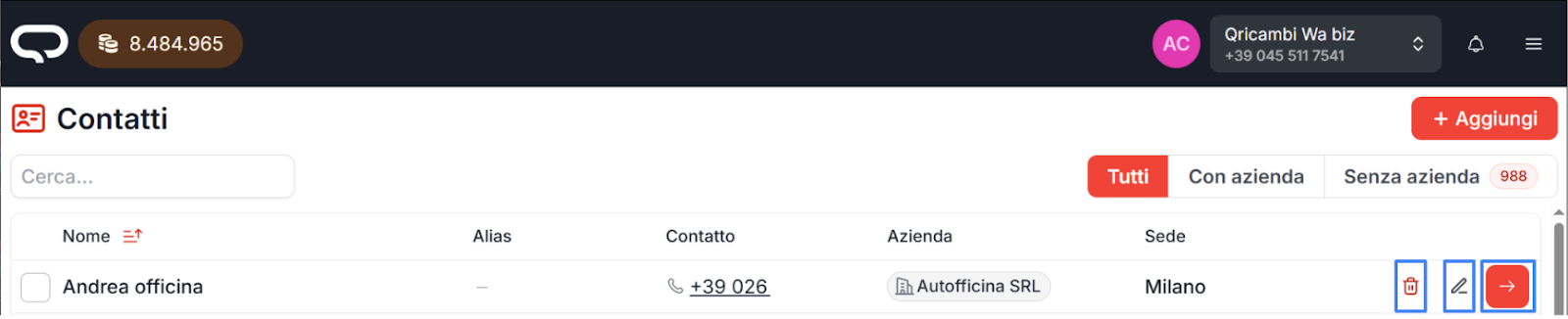
Inside the contacts screen, besides Open new request, you will find:
- Trash can → deletes the contact
- Pencil → edits the contact
- Red arrow → opens the contact's request history