Main screen
The Quoting24 main screen is divided into three main sections, shown below from left to right.
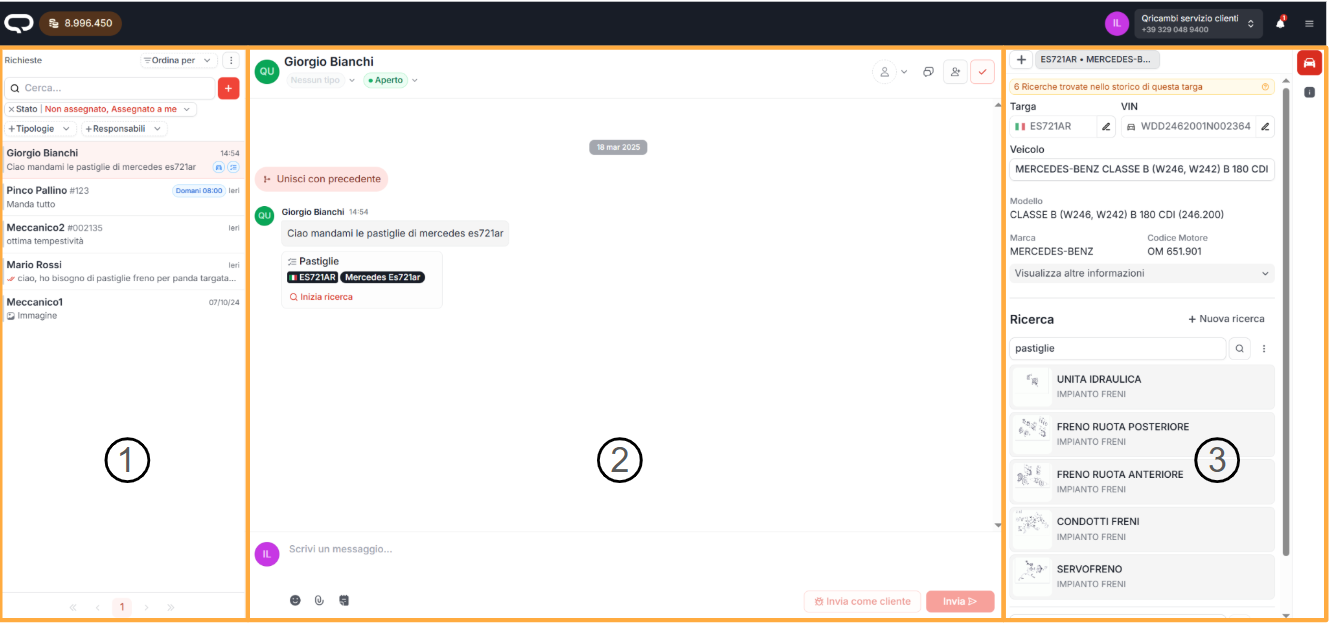
1. Chat / ticket list (left side)

This section contains the list of chats / tickets.
Unlike WhatsApp, where conversations are single continuous streams, in Quoting24 the conversation is divided into tickets: each quote request must be considered as a separate ticket.
For each contact there is only one ticket you can write in. A closed ticket is not reopened by hand: see the flow in Ticket management.
In the same sidebar area you will also find Quoting News: the read-only channel for product communications published by Quoting.
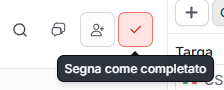
When you finish working on a quote, it is recommended to close the ticket.
Ticket statuses
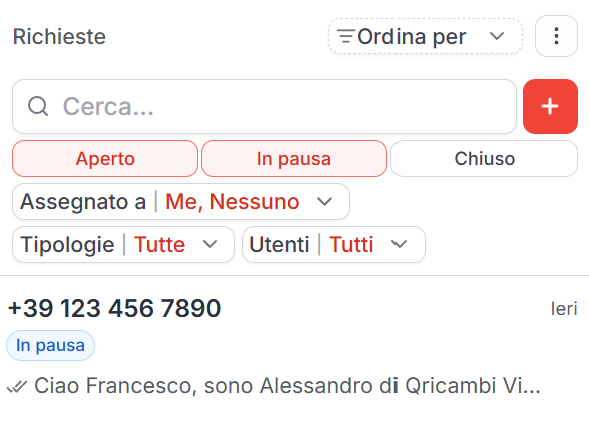
A ticket can be in different statuses, depending on where it is in the workflow:
- Open: the request still needs to be handled or is being processed.
- Unread: the ticket must be picked up again by the team. When a ticket is marked as Unread, the assignees are removed and the request becomes available again to enabled operators.
- On pause: the request is not closed, but you are waiting for a response or information from the customer.
- Closed: the request is complete and should no longer appear among the tickets to work on.
The On pause status is useful when you do not want to permanently close the request. If the customer writes again on a paused ticket, the ticket automatically becomes open, remains assigned to the original operator and also shows previous messages by default.
Sort by
Above the list, Sort by offers:
- Latest message (default) — latest message in the chat, from any sender
- Latest received — latest message from the customer
- Priority descending — effective contact priority (personal or inherited from the company)
- Latest shifts — next delivery shift
- Oldest message
Ticket filters
Assignment / status filters stay always visible (e.g. unassigned, assigned to me, to others, unread, on pause, closed).
The Assignee filter stays outside, on the main row.
All other filters are grouped in the funnel button (same as on mobile). When a funnel filter is active, it also appears outside as a removable chip.
Inside the funnel you find:
- Labels — ticket labels
- Users — assigned operators
- Company type — contact / company type (customer, supplier, collaborator, …)
- Ticket period — shortcuts Last 7 days or Last 30 days
- manual From / To date range
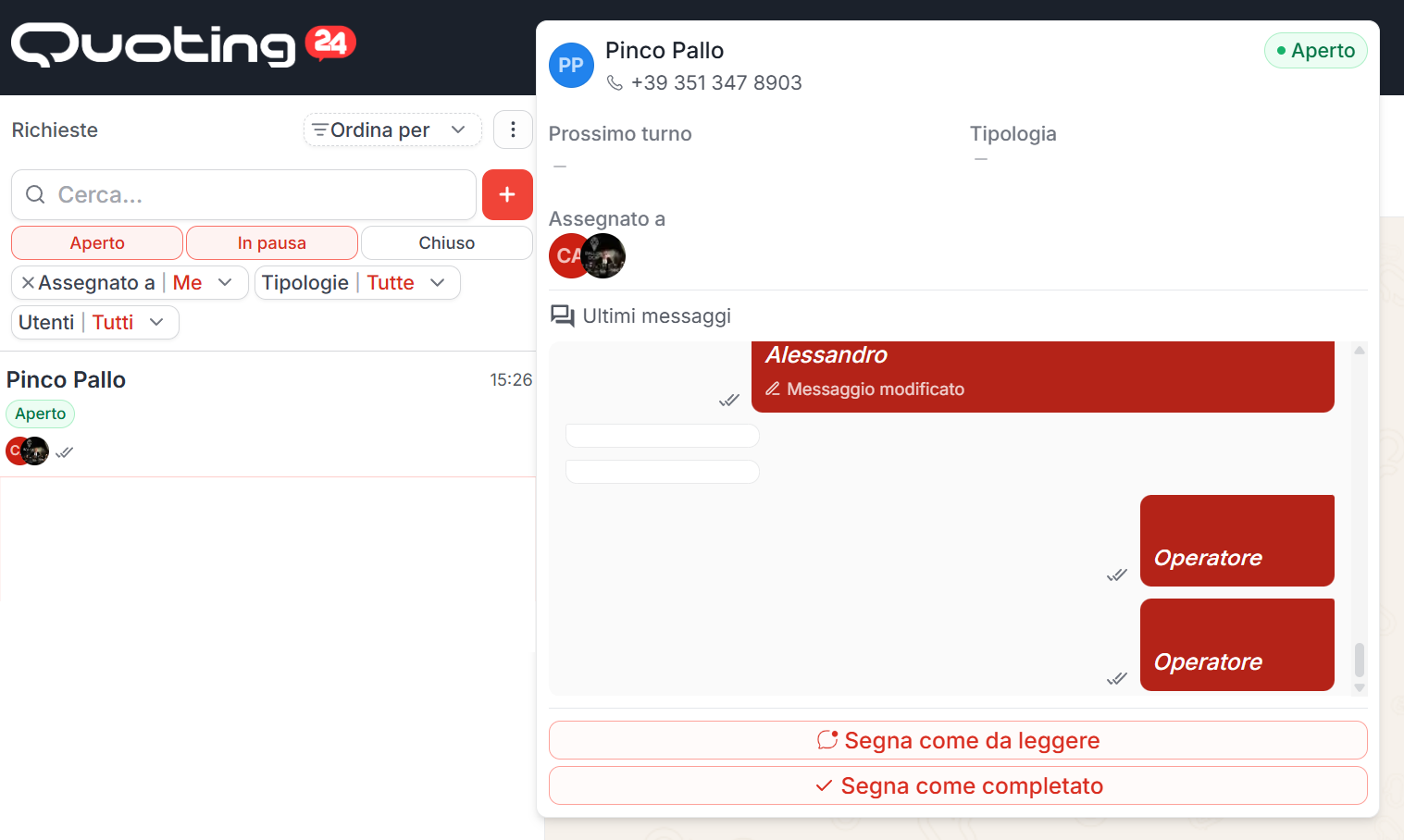
An assigned ticket shows an icon with the operator's initials to the left of the message preview.
Ticket assignment allows for better division of work and optimization of the operational flow among colleagues.
Preview and indicators in the list
By hovering over a chat on the left side, you can view a conversation preview without having to open the ticket immediately.
In the ticket list, to the right of the contact name, a single tag shows:
- the contact priority icon (personal or inherited from the company):
- triangle up → high priority
- dot / dash → medium priority
- triangle down → low priority
- right after that, the company code (without the
#used in the past) - the tag color reflects the linked company type or, when present, the contact's personal type
Hovering the tag shows a short summary (company, priority, type).
Previews also still show useful indicators such as:
- reactions added by the customer or operators
- the assigned operator icon
- ticket status and any labels on the request
- the next delivery shift, when available
Search in the ticket list
In the left panel there is a search field split into sections, with the result count for each:
- All
- Conversations
- Messages
- Parts
Section chips collapse when space is tight.
Contacts can also be found by company name and company code. If the match is on the company, a label with the name or code is shown.
Quick ticket creation
The operator can write to one of their contacts by clicking the ‘+’ button in the ticket list (action “Open new request”).
The same action is also available from Contacts (list and contact detail).
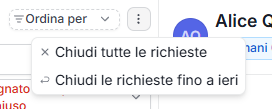
By clicking the three dots at the top right you can:
- close all tickets
- or close all tickets up to yesterday
Details for each chat

Here we explain in detail the components in each chat:
- The icons next to the status are the request labels
- Next to the contact name, the single tag shows priority and company code (without
#), colored by contact/company type - The value in the blue oval, in this case 'Tomorrow 08:00', corresponds to the first available cutoff / shift
2. Chat and conversation management
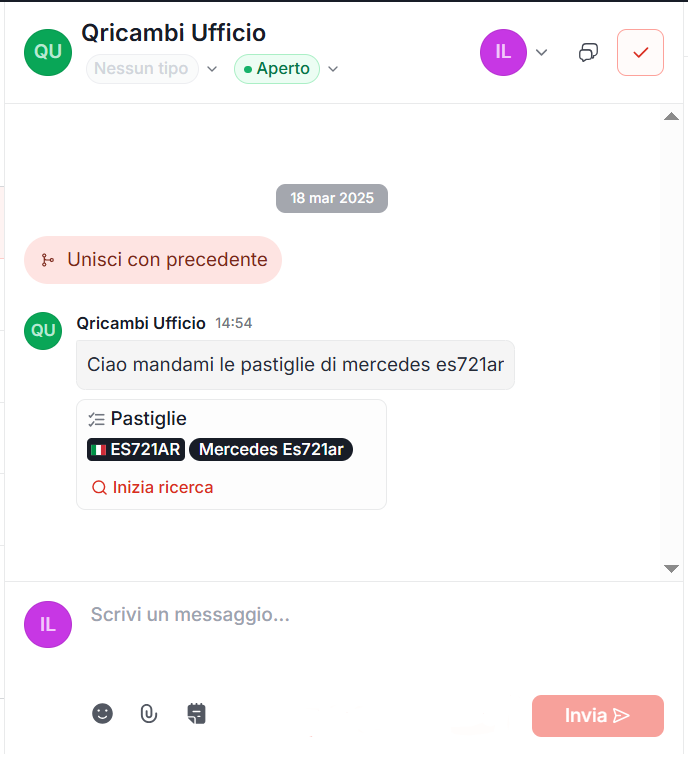
This section allows you to:
- send messages
- attach photos, videos and other files
- manage the conversation with the customer
- check the history of tickets linked to the same chat
Automatic data identification
Elements useful for creating a quote
(e.g. license plate, VIN, vehicle description or requested spare part)
are automatically identified from the conversation with the customer, tagged and shown in the right section (see point 3).
Opening, pausing and ticket continuity
Write and reopen behavior is explained in full in Ticket management. In short:
- if the current ticket is open, the message stays on the request in progress
- if it is on pause, it automatically becomes open and stays assigned to the original operator
- if it is closed:
- with an already open ticket on the same contact → the reply goes to the open ticket (the closed one stays linked)
- if the closed ticket is not the latest → the reply opens a new request (the closed one stays linked)
- if the closed ticket is the latest → the ticket is reopened
A closed ticket cannot be reopened by changing its status by hand. On closed tickets you get Go to open ticket, Go to latest closed ticket and Open new request.
When useful, you can still:
- view the entire conversation
- merge linked tickets to recover work already done
Scheduled messages are routed at send time. If you close a ticket that still has scheduled messages, Quoting24 asks for confirmation.
Viewing tickets in the chat
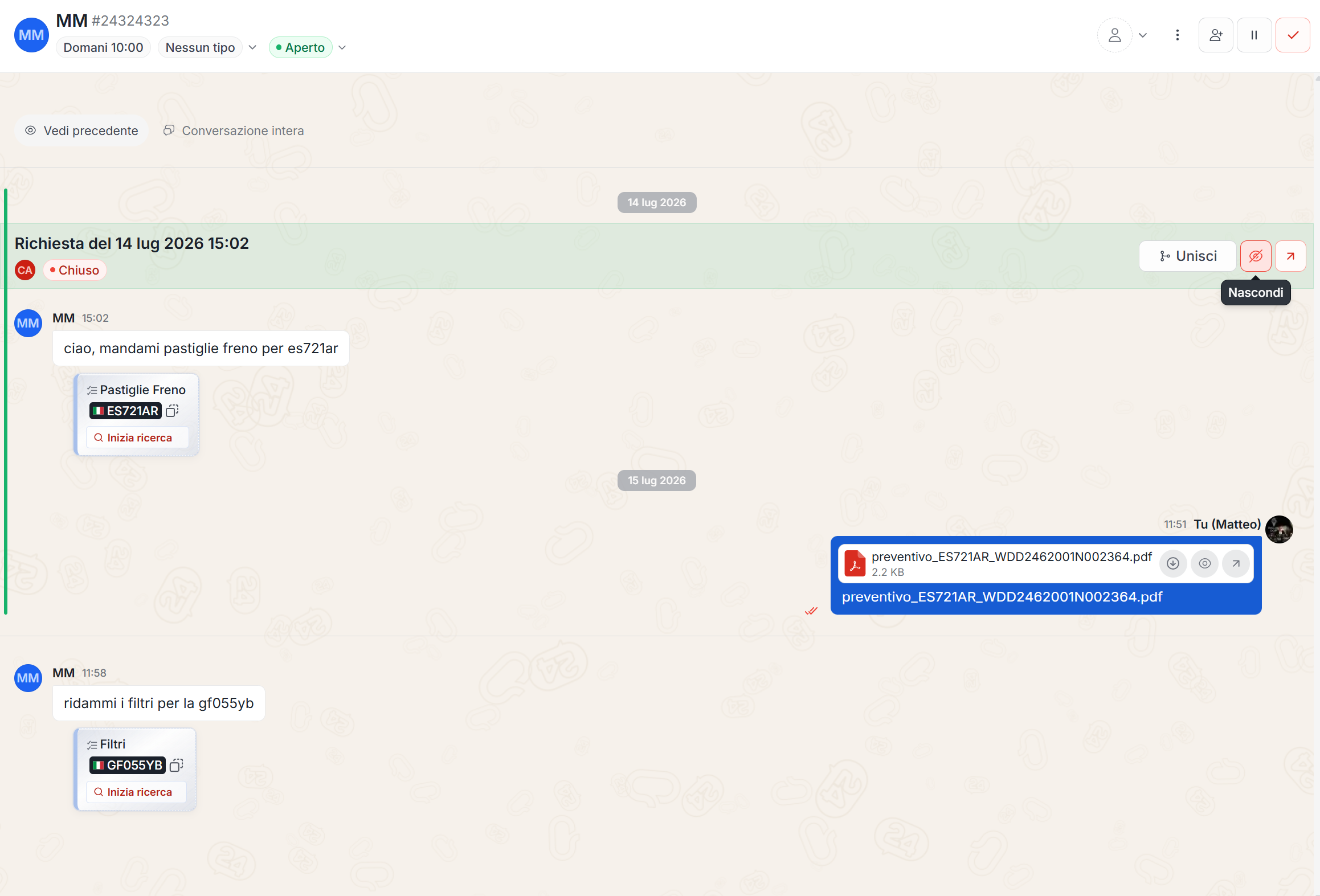
The main chat shows tickets in the same format as the full chat: lines and banners indicate where each ticket starts and ends.
On the separation banners between tickets (including when using View previous), the following are shown:
- date and time of ticket closure
- who closed the ticket

When multiple tickets are linked to the same conversation, dedicated actions are available:
- Merge: links the current ticket to a previous one, recovering the context already worked on.
- Unlink request: separates a linked request so it can be managed as an independent ticket. The action is indicated by the crossed-out eye icon.
- Open full conversation: if there are other tickets or intermediate messages between two linked tickets, a button appears to open the full conversation at that point and view them all.
“N unread messages” banner
When opening a ticket with unread customer messages, a divider appears in chat between already read and unread messages, e.g. “1 unread message” or “N unread messages”.
The count updates if more customer messages arrive while the banner is visible. It does not count internal notes or outbound messages.

Automatic transcription of voice messages and images
Quoting24 automatically transcribes:
- voice messages received from customers
-
the content of images, for example:
-
a photo of a license plate, which is recognized and transcribed automatically
All useful information is extracted from the transcribed text
(license plates, VINs, quote components).
If automatic AI data extraction has been hidden from the activity settings, the technical information may still be available in the right section, but it is not shown as an operational detail in the conversation.
Attachments
By clicking the paperclip icon you can attach:
- photos
- videos
- PDFs
- other files
Attachments can also be dragged directly into the chat.
PDF preview in chat
PDFs received or sent in chat show a first-page preview in the message (thumbnail on top, name and size below). Clicking the file opens the document viewer.
If the preview is unavailable, the classic file card remains.
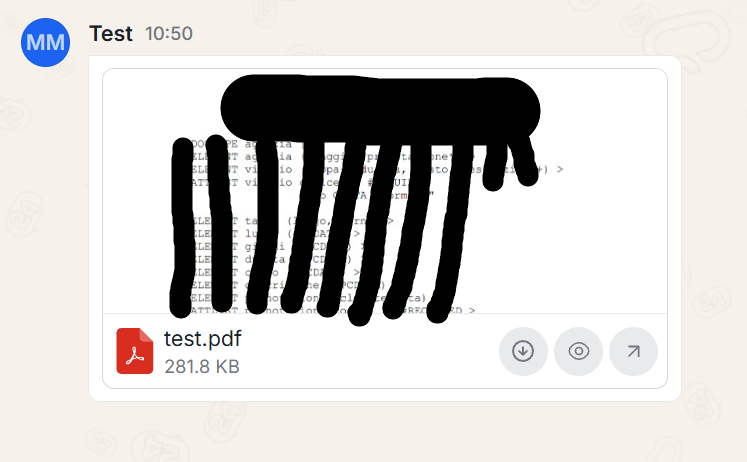
Image editor before sending
When you attach an image to a message, using the paperclip icon or by dragging it into the chat, Quoting24 shows a preview of the attachment before sending.
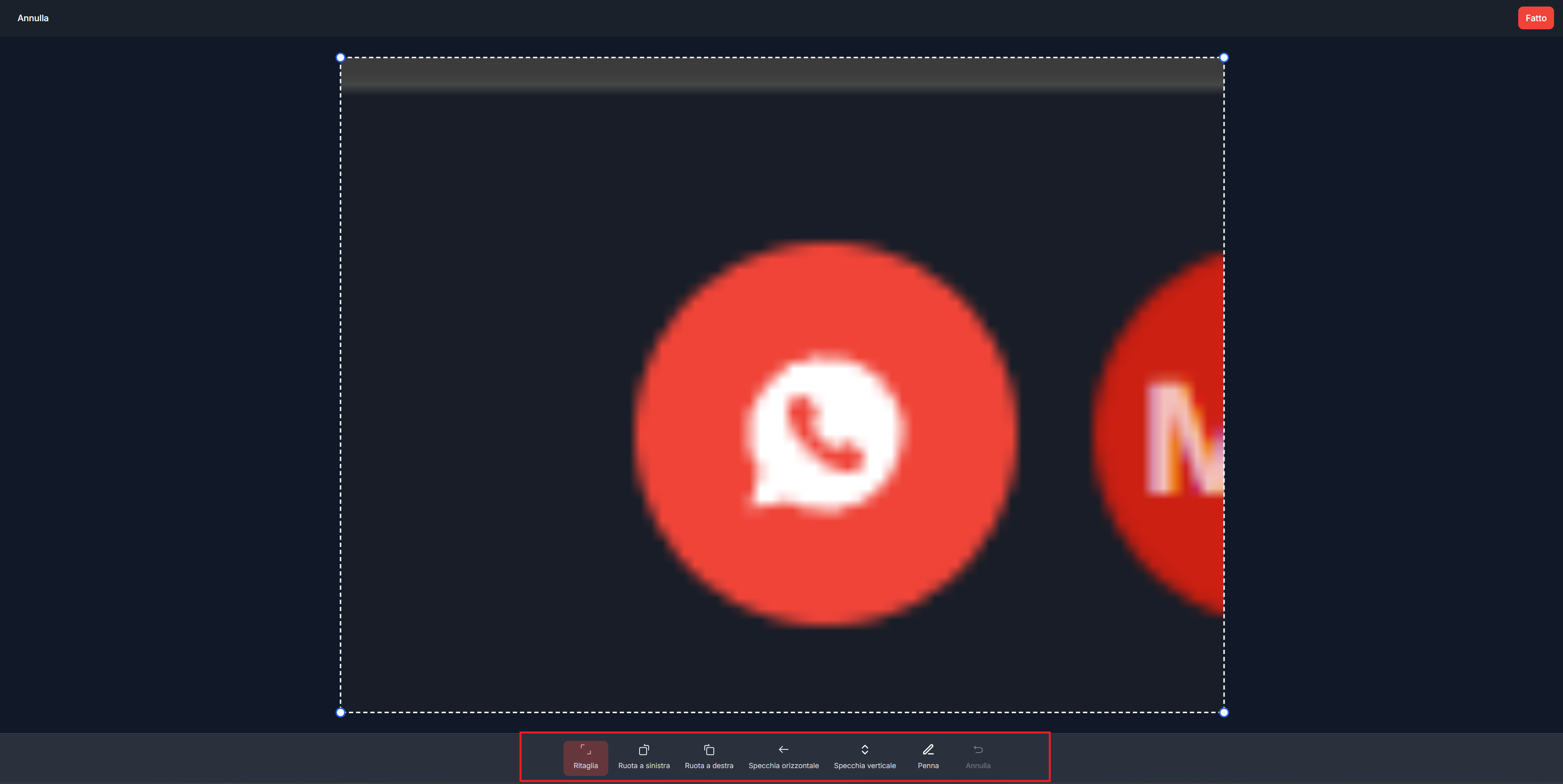
Clicking the image in the preview opens the fullscreen image editor, where you can edit the image before sending it to the customer.
The editor is available only for images still queued for sending. It does not apply to videos, generic files, or messages that have already been sent.
Available tools include:
- Crop: lets you select the part of the image to keep by dragging the crop box
- Rotate left / right: rotates the image in the selected direction
- Flip horizontally / vertically: mirrors the image on the selected axis
- Pen and colors: lets you draw on the image
- Eraser: removes drawn strokes
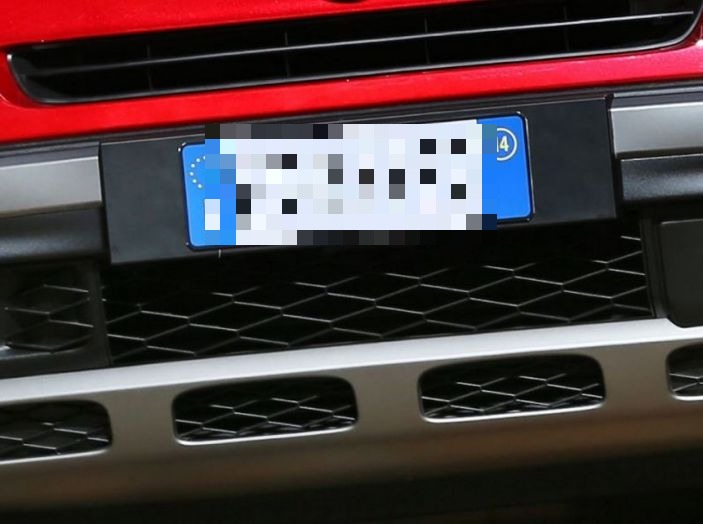
- Blur: covers an area with a pixelated rectangle that you can move and resize. Another click on the photo adds another one
- Undo: reverts the last action
When editing is complete:
- clicking Done replaces the original attachment with the edited image
- clicking Cancel leaves the original image unchanged
After editing, the message can be sent as usual.
Blur hides details visible in the photo, for example a license plate, before you send it to the customer. Each rectangle can be moved and resized; another click on the photo adds one more rectangle.
Voice messages, audio and media
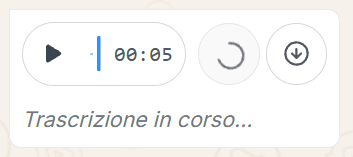
Quoting24 supports voice messages and audio files received in chat. Voice messages can be listened to, automatically transcribed and, when available, downloaded as audio files.
During processing, the status “Transcription in progress…” is shown. A Retry button is also available to relaunch the transcription if needed.
Photos and videos sent in the conversation can be opened in the media carousel, which lets you quickly browse through multimedia content received or sent in the chat.
Voice dictation
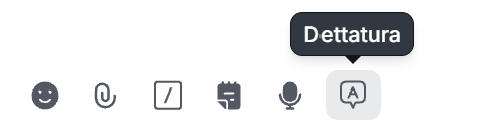
Below the message input field there is a Dictation icon. With microphone permission, speech is transcribed in real time into the message.
“Typing” indicator
When another user is typing in the active chat, Quoting24 shows the typing indicator. This helps operators avoid overlapping replies while a colleague is already preparing a message.

Sending without header or signature
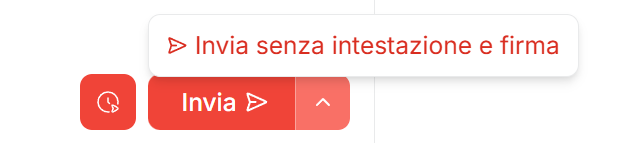
If header or signature have been configured in your profile, Quoting24 adds them according to the chosen option: always, or only on the first message of the ticket and with Send and close.
You can still send a single message without header and without signature.
This option is useful for quick replies, very short messages or communications that should not include the automatic text configured by the operator.
Message actions
The actions available on a message can be opened in two ways:
- by right-clicking the message
- by clicking the arrow to the right of the message
From this menu you can perform operations such as replying, forwarding or deleting messages. When allowed by the selection, you can also perform bulk forwarding and bulk deletion.
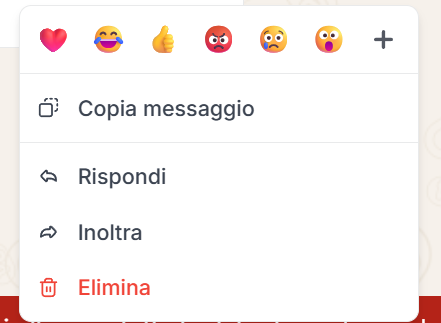
Message reactions
Reactions allow customers and operators to react to messages in the conversation.
Quoting24 shows:
- the reaction applied to the message
- who added the reaction
- the reaction in the message preview in the left column
Received reactions generate notifications in Quoting24, in the bell and, if enabled, also as desktop notifications.
If a customer adds a reaction to a message belonging to an already closed ticket, Quoting24 creates a reference to the message through a reply, so the reaction remains visible in the currently open ticket.
Internal notes
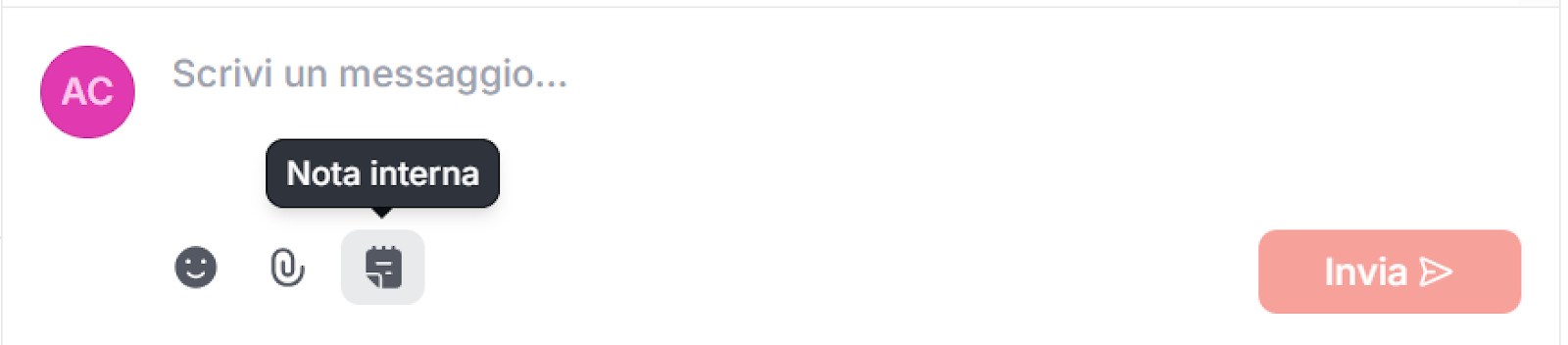
In the chat, you can add an internal note for colleagues:
- by clicking the dedicated icon
- or by typing @ + SPACE
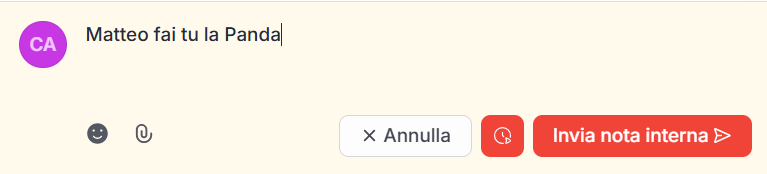
When you write an internal note:
- the background becomes yellow
- the note is NOT sent to the customer
- it is visible only to Quoting24 users
Inside notes, you can tag a colleague
(by writing @nickname) and the colleague will receive a notification.
It is also possible to tag all colleagues by writing @everyone.
When a user is tagged in an internal note, the notification generated by Quoting24 is highlighted in orange. Next to the message read checkmarks, the internal note icon is also shown, so messages visible only to operators can be recognized immediately.
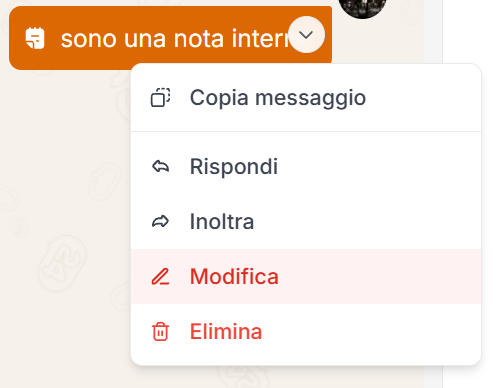
Text internal notes can be edited within 15 minutes, only by the author.
When replying to an internal note:
- the reply remains an internal note
- the author of the original note is reassigned to the ticket
Ticket information
In the ticket Information tab (i icon) you can quickly view and edit data linked to the request.
The section is organized as follows:
- Top — Contact
Notes, warnings, contact assignees, contact priority and contact type (type is editable only if the contact has no company). - Bottom — Company (when present)
Name, notes, location, company priority and company type.
On contact priority:
- if unset, it is inherited from the company (label Inherited from company)
- you can still set a personal priority even if the company already has one
On contact type:
- without a company → you can set it on the contact
- with a company → it is inherited and not editable on the contact; change it on the company
In the ticket assignees select, the None option is also available: it removes all assignees. Details in Assignments.
If the contact has important notices, these are shown above the chat to immediately draw the operator's attention.
Chat export
From the chat you can export the conversation.
When starting the export you can choose:
- export without media
- export with media
If media are included, they are saved in a separate zip, together with the chat file.
Ticket history
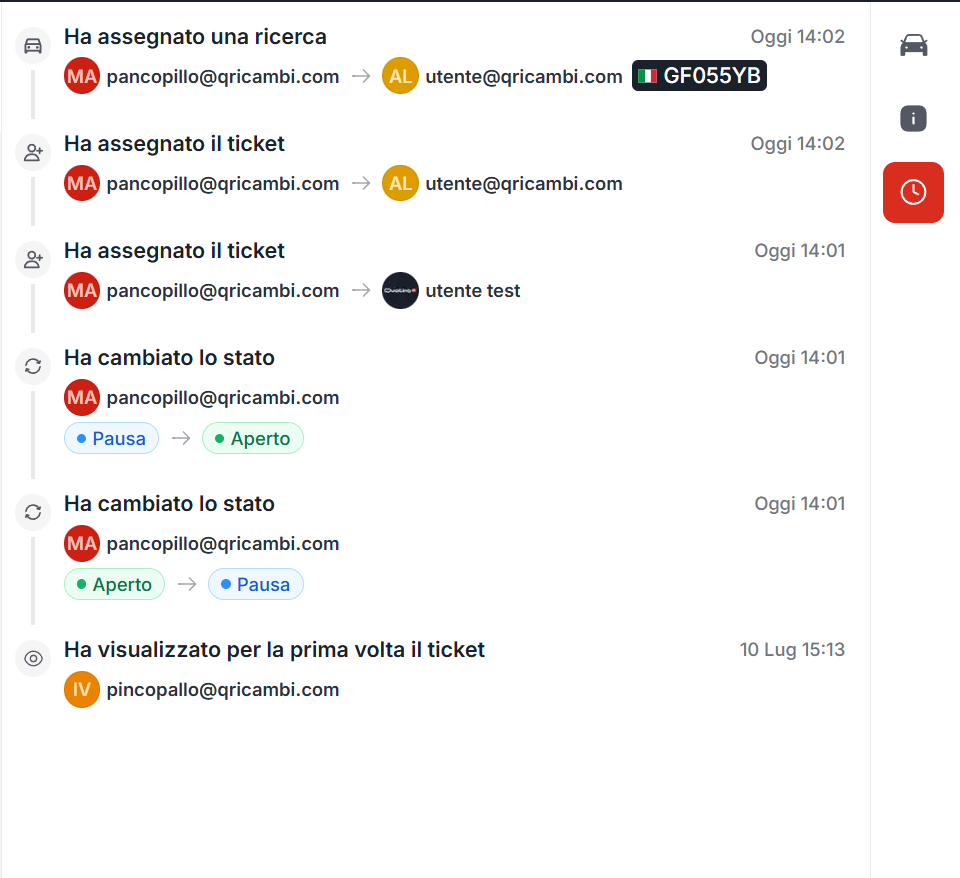
From the right side panel of the ticket, you can open the History tab, identified by the clock icon.
This tab shows a read-only timeline of the events linked to the ticket. It is used to check what happened on the request, who performed the action, and when.
The history can include events such as:
- ticket status changes
- first ticket view
- reading unread messages
- assignment or removal of ticket assignees
- operator self-assignment, shown as an automatic take-over action
- assignment of searches linked to the ticket
- search status changes, for example open, paused or closed
When the event concerns a vehicle search, Quoting24 also shows the available data to identify it more easily, such as license plate, VIN or vehicle.
The history updates in real time and cannot be edited from this tab: it is intended only for consultation and operational traceability.
3. VIN and code search section
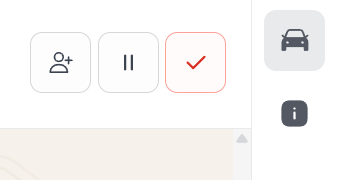
The right section can be collapsed by clicking the active tab icon. This lets you leave more space for the conversation when you do not need to work on technical data.
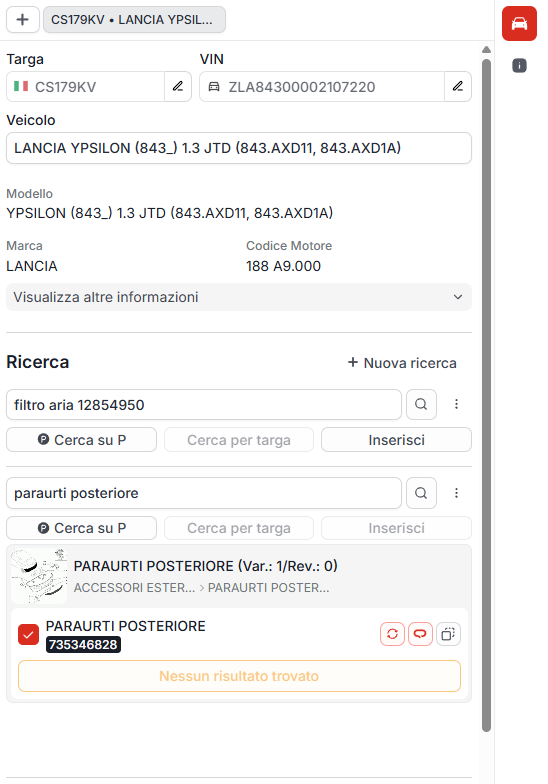
This section shows:
- license plates
- VINs
- spare part descriptions
identified directly from the chat with the customer.
The license plate is automatically converted into a VIN and vehicle information is shown (e.g. make, model, etc.).
Sub-assignments
Sub-assignments let you assign not the whole ticket, but the individual vehicle search inside the chat.
A ticket can contain multiple searches at the same time (for example two different plates or two vehicles from the same customer). Each search has:
- its own status (for example Open, On hold, Closed)
- one or more assigned operators
This way work can be split by vehicle: one colleague handles one vehicle, another colleague handles a second one, without splitting the conversation into separate tickets.
Difference from ticket assignment
- Ticket assignment: covers the whole chat / request and shows who owns the conversation.
- Sub-assignment: covers the individual vehicle search and shows who works on that specific vehicle.
- Where you manage it: ticket assignment on the chat; sub-assignment on the search panel, top right.
Ticket assignment and sub-assignments can coexist: the ticket can stay assigned to one operator, while the searches inside it are distributed to other collaborators.
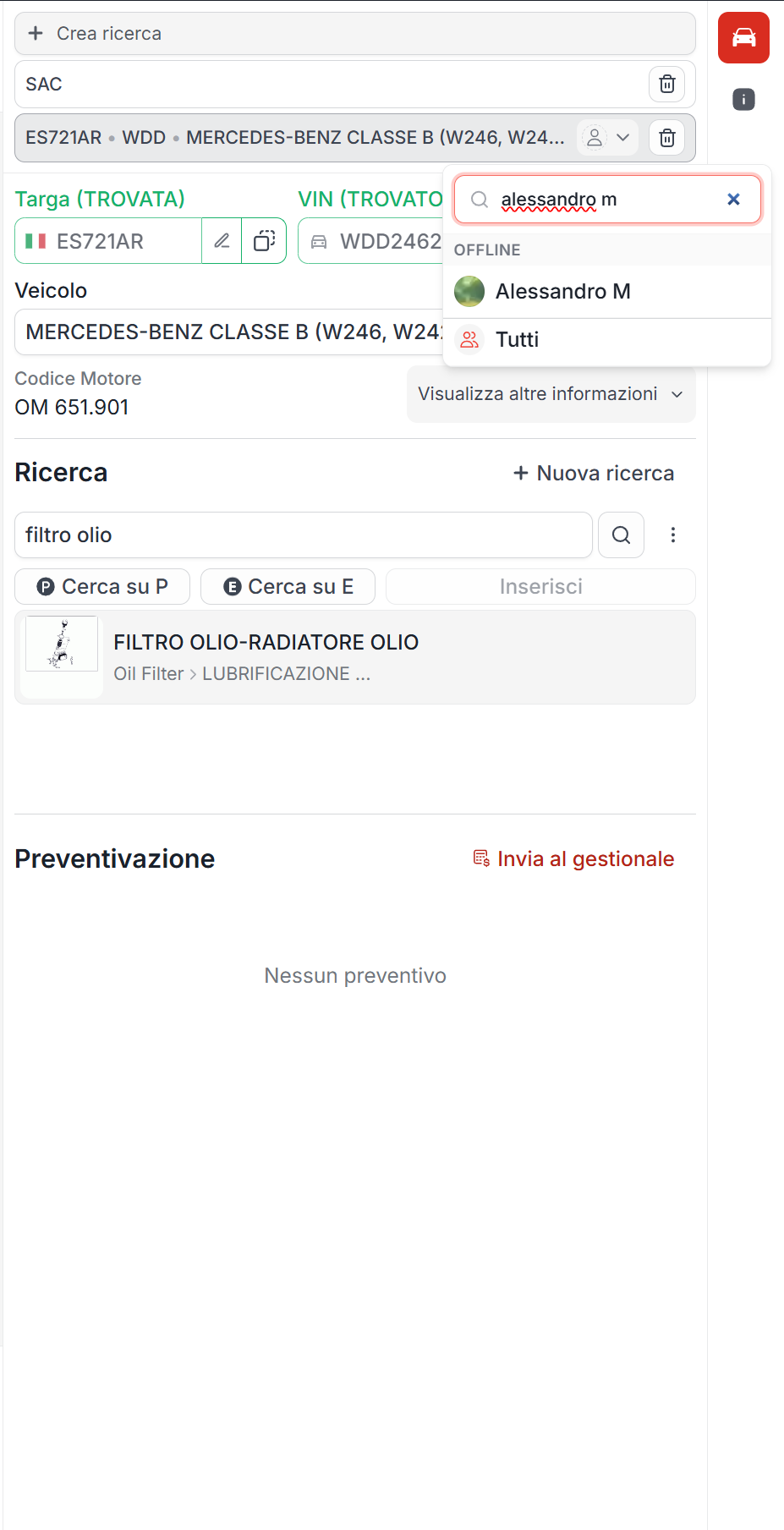
How to assign a search
- Open the vehicle search in the right-hand section.
- Click the person icon (or the assignee avatar) at the top right of the vehicle row.
- Search for the operator and select them, or choose Everyone to involve all collaborators.
On the same row you can also change the status of that single search, independently from the ticket status.

Changes to search assignment and status are also recorded in the ticket history, together with plate, VIN or vehicle details when available.
For automatic and manual assignment at ticket level, see the Assignments page.
Spare part search through exploded views
An artificial intelligence model suggests some spare part options based on the exploded views.
Data extraction from images, voice messages and text can be hidden from the activity settings if the administrator prefers not to show operators the details of AI processing.
The operator must:
- enter the exploded views
- manually select the correct code
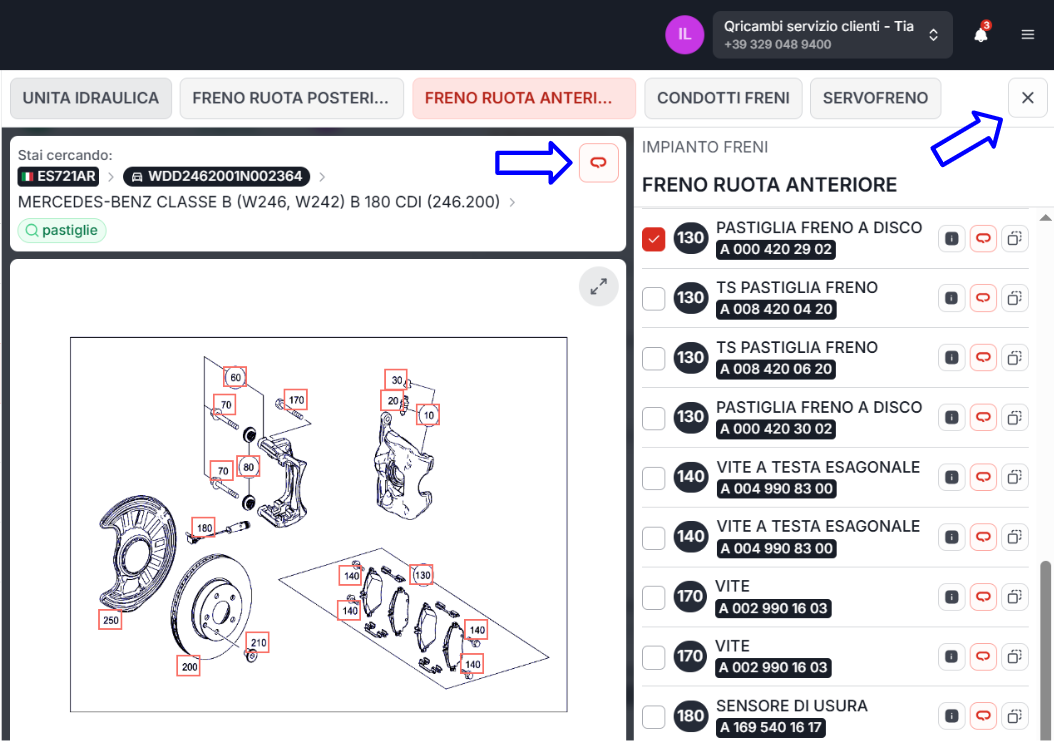
Clicking an exploded view preview opens the full navigation page for the available exploded views.
The operator:
- searches for the desired part
- selects the code by checking the box on the left
- closes the page using the ‘X’ at the top right
If the operator wants to view the complete VIN tree, they can click the ‘Q’ of Qricambi.
Sending the exploded view in chat
From the exploded view, you can send the photo of the exploded view linked to the selected spare part directly in chat. This feature is useful when you want to ask the customer for confirmation by showing the technical detail of the part.

Available actions on codes
To the right of each code, the following are available:
- an ‘i’ with additional information about the part
- a red ‘Q’ to search for the code on Qricambi
- the icon to copy the code
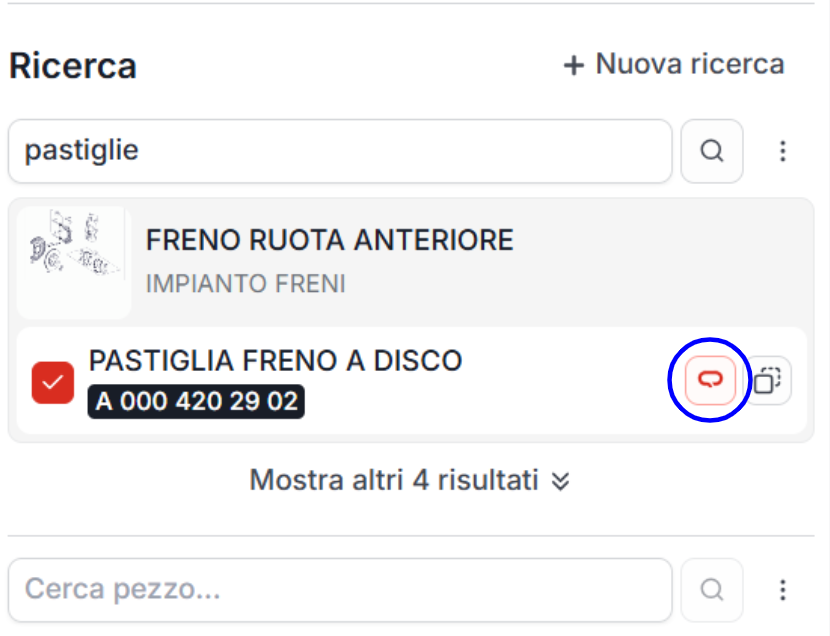
The selected code is shown on the previous screen and you can:
Direct supplier search
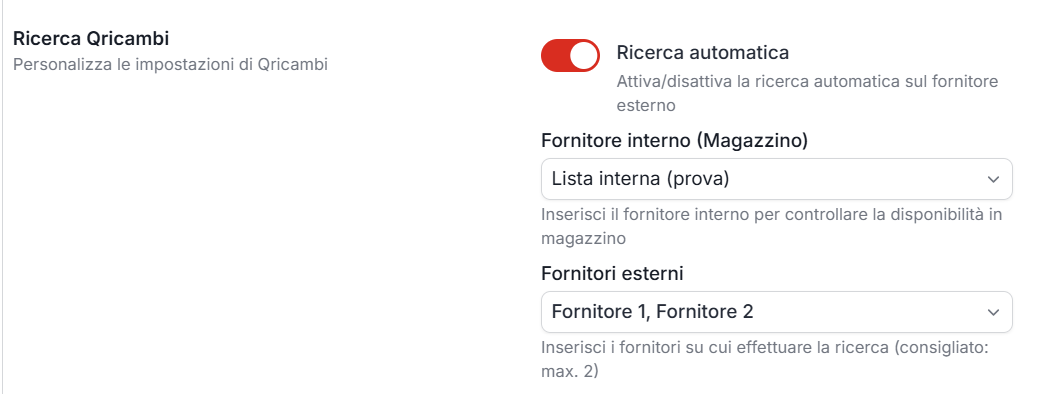
Alternatively, you can search for codes directly on some suppliers from Quoting24.
To do this, from the Settings → Qricambi section you can select:
- internal suppliers (e.g. your own lists)
- external suppliers
Supplier search:
- is more concise than Qricambi
- follows the same logic
Results are sorted by:
- price
- availability
Products shown at the top are:
- cheaper
- immediately available (green)
As you scroll through the results:
- availability changes from yellow to red
- the price increases
The following are shown:
- code
- brand
- supplier
- description
- net price
- list price, if available
- availability
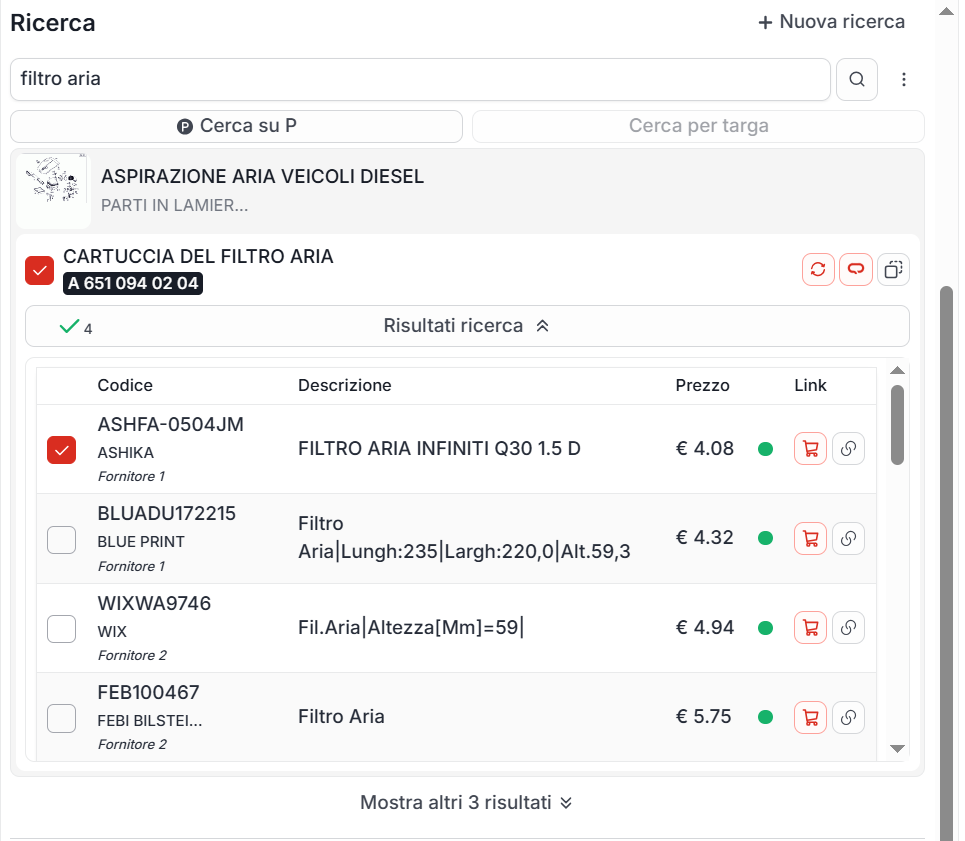
Next to each result there are two icons:
- add to the Qricambi cart
- link to the supplier's e-commerce site
NB Automatic supplier search on Qricambi can be disabled at any time from the Settings → Qricambi section
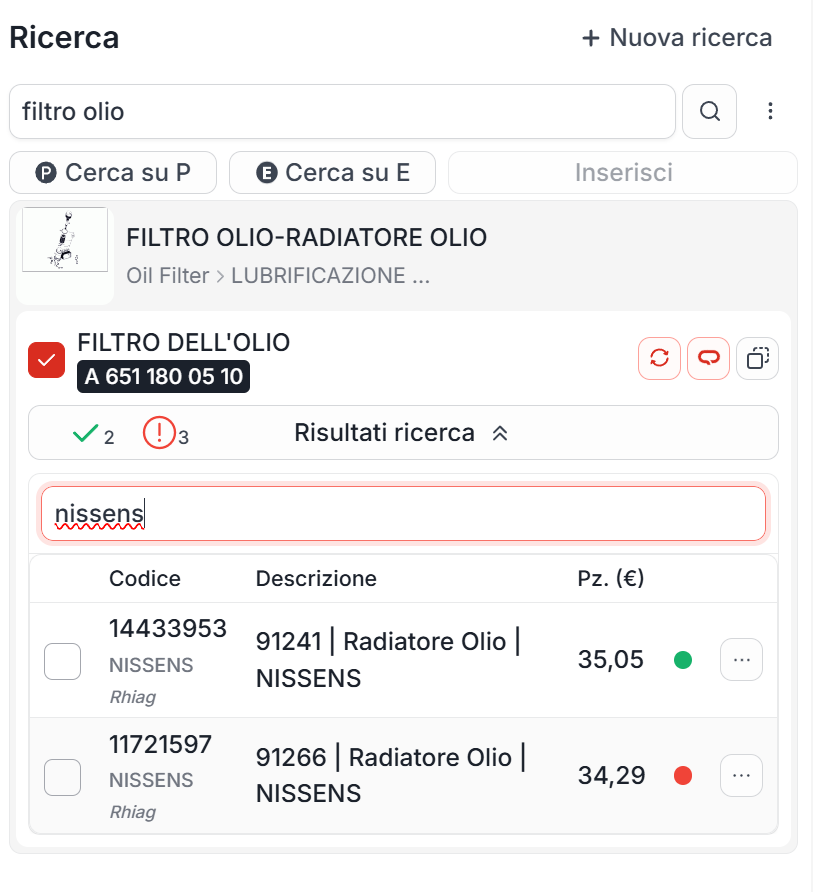
Search within Qricambi results
When there are many results, you can perform a text search within Qricambi results, so you can identify the desired code, brand or description more quickly.