Workflows
Workflows are automations for incoming email. They live in Settings → Tickets and automations → Workflows.
You need an email channel. Without a connected mailbox, the page asks you to add one under Channels.
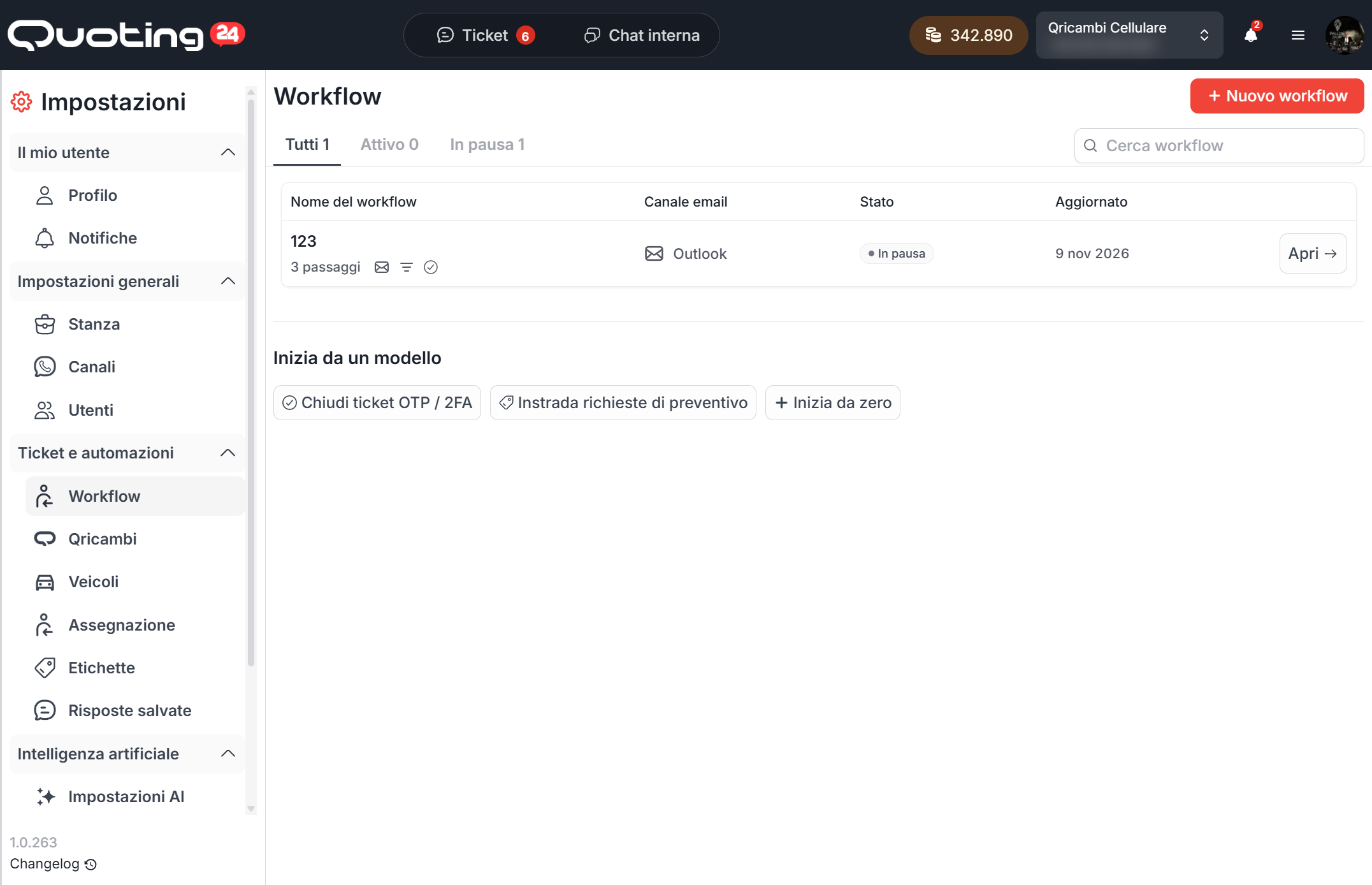
New workflow starts from a template or from scratch:
- Close OTP / 2FA tickets closes tickets that contain verification codes
- Route quote requests classifies quote requests and assigns them to a colleague
- Start from scratch lets you pick the conditions and actions
The list shows the name, the email channel, the status (Enabled or Paused) and the update date. The filters are All, Enabled and Paused.
The path
Open a workflow and build the steps on the canvas. Blocks can be dragged and connected: a condition has a Yes path and a No path.
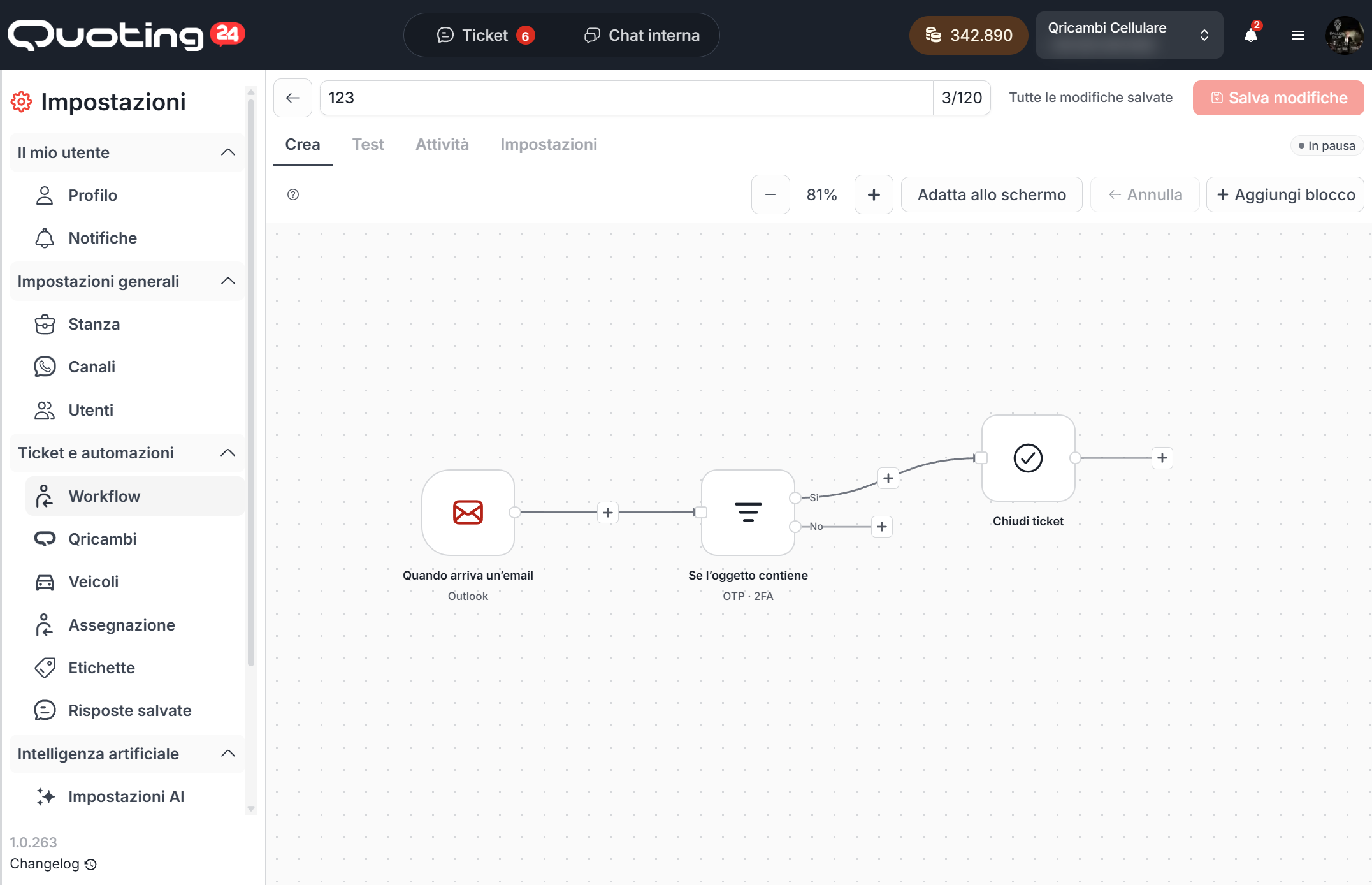
The first block is When email arrives. After that you can add, among others:
- If subject contains and If email body contains, with one term per line
- If, with conditions on sender, domain, contact, company, company type and priority, ticket status and category
- Sender matches, with address patterns (for example
*@example.com) - From contact or From contacts
- AI categorizer: the AI reads the subject and body and follows the best matching choice. If none fits, it follows None
- Set ticket category
- Assign to member, replacing the current assignees
- Close ticket
- Reply to email (to the sender or to all recipients) and Forward email to
- Send WhatsApp message to a contact, when a WhatsApp channel is connected
- Send notification to selected colleagues, with a title, text, icon and color
Save changes stores the path. A saved workflow stays on its original email channel. Lower order numbers run first. The limit is 20 steps.
Only owners and administrators edit workflows. Everyone else can open them and try them.
Test and activity
On the Test tab, Preview path shows the steps the email would take. It does not change tickets and it does not send messages.
Activity lists the real runs, when an incoming email started the workflow. Previews are not included.