Parts tree
Once the VIN has been searched and found, Quoting24 shows the vehicle’s spare parts as in the manufacturer’s catalogue. From here you open the drawings, tick the right codes and add them to the customer’s requests.
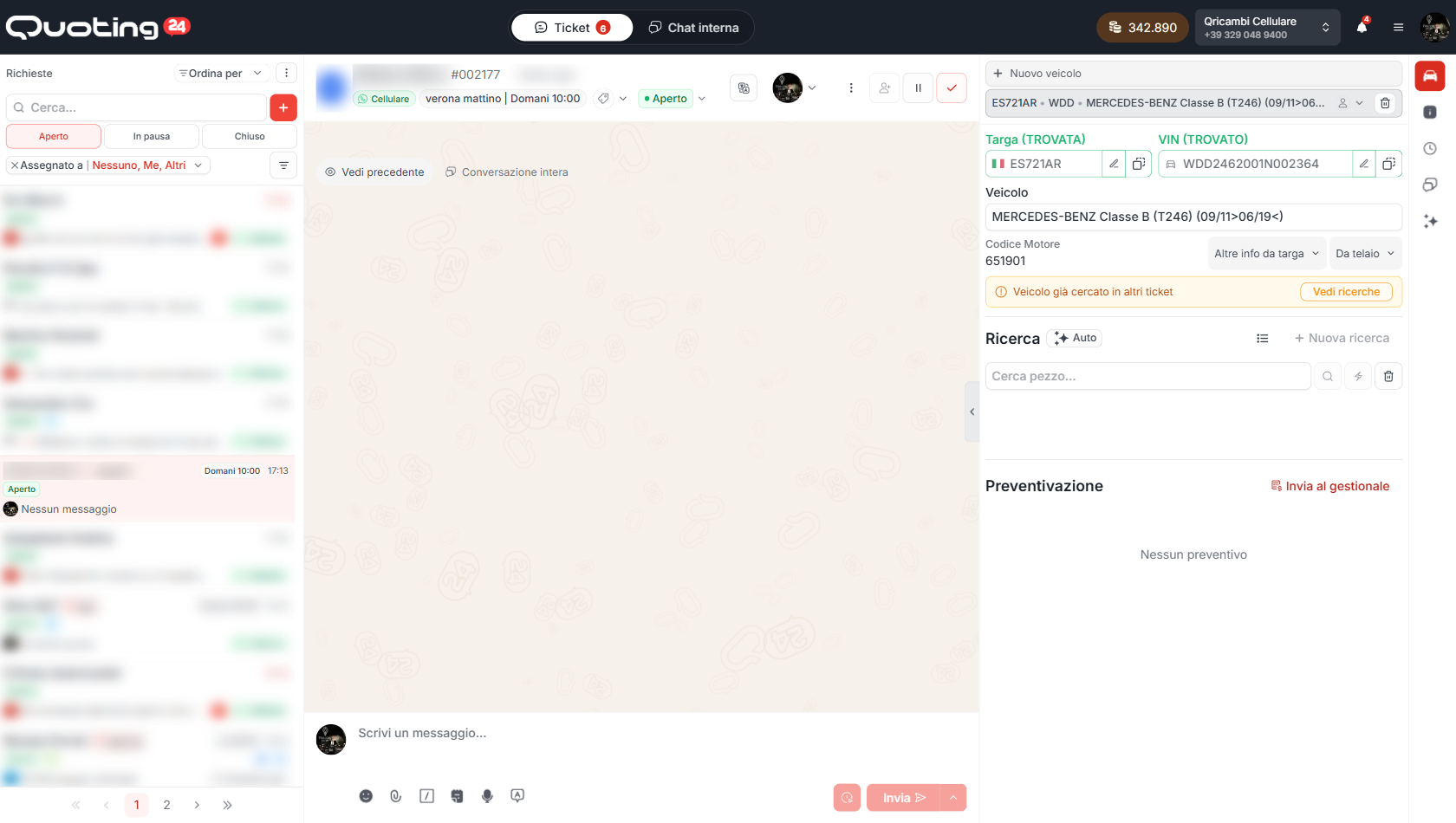
Before you start
The tree opens only if, on the vehicle card, the VIN has been searched and found. The plate shows Plate (FOUND) and the chassis shows VIN (FOUND).
The Parts tree button (the list icon next to New search) stays disabled until the VIN is ready. Hovering it tells you what is missing: Enter VIN, Search the VIN first or VIN not found.
The screen
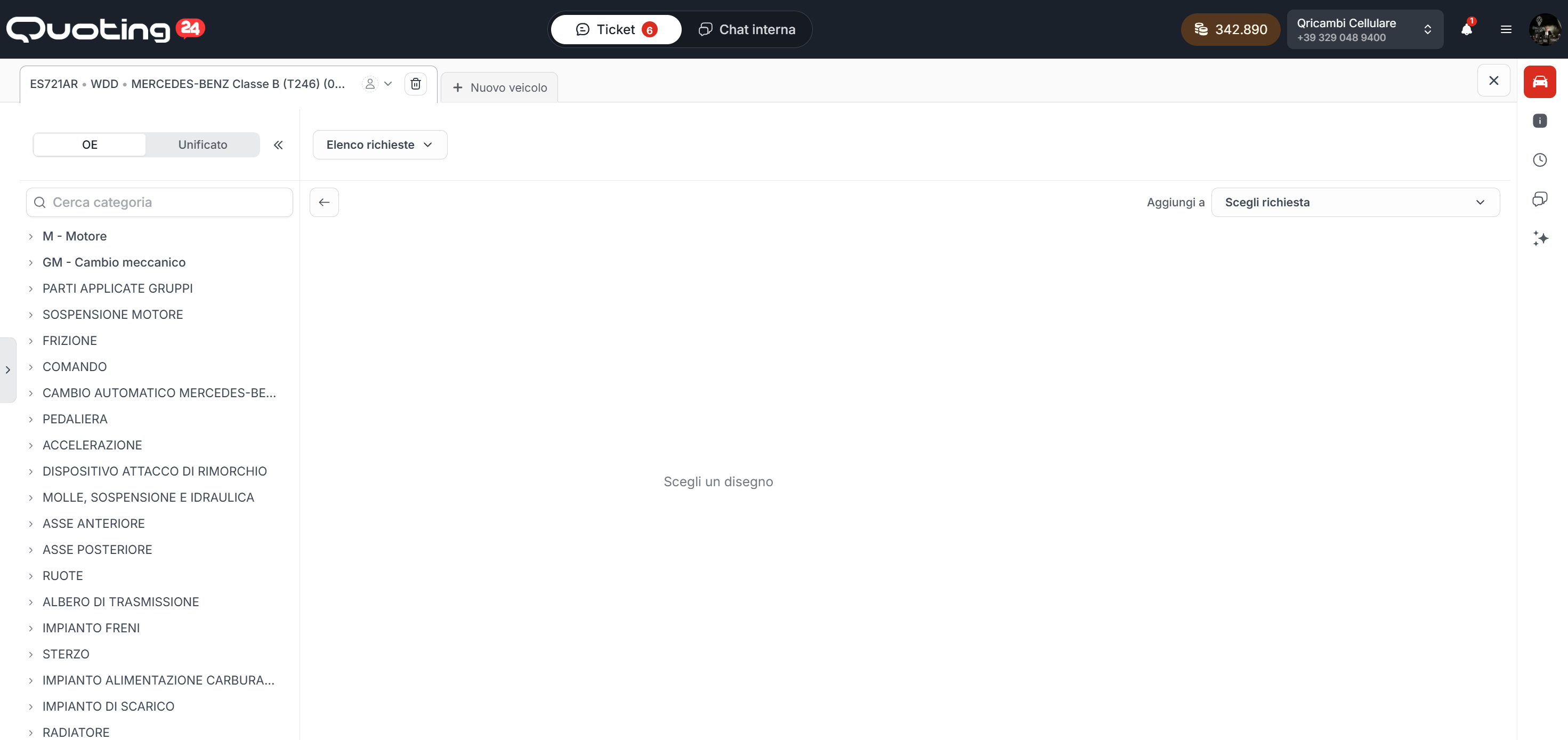
- On the left, groups and drawings.
- In the centre, the drawing.
- On the right, the codes to tick.
- At the bottom, the other drawings in the same group.
At the top you choose OE (the manufacturer catalogue categories) or Unified (the same groups for every make). Search category filters the tree by name. The « button (Hide tree) leaves more room for the drawing.
Tick a code on the right and it goes into the request selected in Add to.
Two ways to find a part
By name, with AI
In the Search section, type what you need (for example oil filter) in Search part and press Enter, or the magnifying-glass button (Create and search). The AI looks for the drawings where that part appears and opens the best one, with the tree already on the right branch.
- While it searches you see the AI icon pulsing and Search in progress.
- If the search fails, Search failed appears: the request stays created and you can try again.
- The + button (New search, Create request) creates the request without searching.
By browsing the tree
Press Parts tree, choose a group on the left and then a drawing. Use this when the customer does not know the exact part name, or to check what is around it.
Putting codes into requests
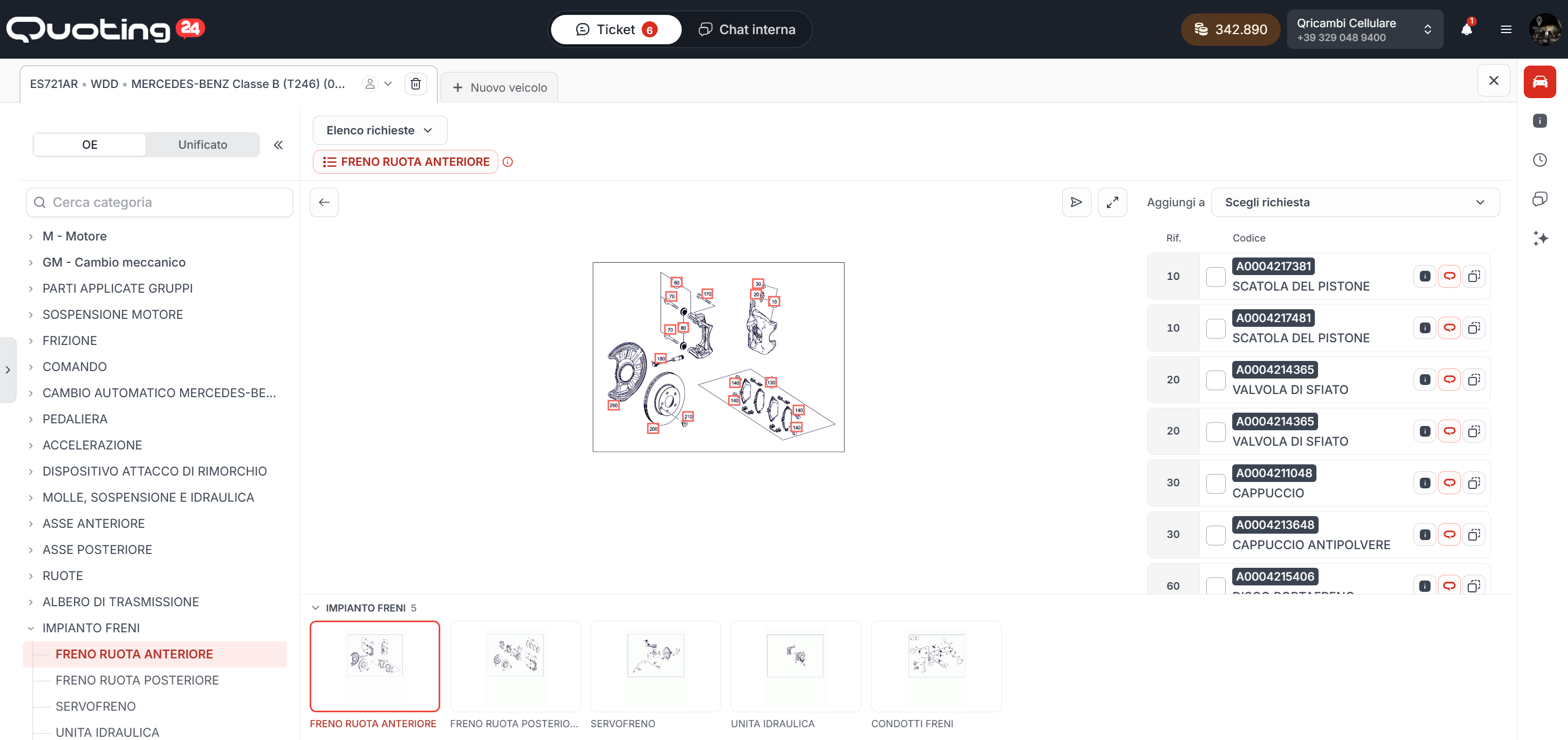
Add to shows which request receives the codes you tick. If you have not chosen a request yet, the menu shows Choose request.
- Choose the request in Add to, or create one from Search part or with New search.
- Tick the code in the list on the right, or click its number on the drawing: it is the same action.
- The code is added to the request. Clear the tick to remove it.
If no request is selected in Add to, ticking a code creates a new request named after the part, containing that drawing and that code. Each code ticked this way creates its own request.
Request list shows the requests with their codes. The → arrow next to a code (Go to search) opens the search it comes from. While the AI is choosing the right code for a request, you see the AI icon and Choosing code….
Each code still has the actions described on the main screen: part information, search on Qricambi and copy code.
Moving around
| What | Where | What it does |
|---|---|---|
| ↑ ↓ buttons | Top right | Previous or next search |
| Tabs with a magnifying glass | Top bar | Drawings found by the open search. Hover to read the full name |
| Light red tab | Top bar | The drawing opened from the tree. The ⓘ reminds you it is not in any search yet |
| Other drawings in the group | Bottom | Click to open another drawing in the same group |
| Back button | Above the drawing, on the left | Goes back one step; on the first step it closes the panel |
| Send to chat and Enlarge | Above the drawing, on the right | Sends the drawing to the ticket chat, or opens it full screen |
The X at the top right always closes the panel.
From the keyboard:
| Key | What it does |
|---|---|
| ↑ ↓ | Previous or next search, same as the buttons at the top right |
| ← → | Previous or next drawing among the tabs in the top bar; after the last one it starts again from the first |
| Esc | Always closes the panel |
Automatic loading of the tree, when a VIN is available, is turned on from Automations.